For most Ontario small businesses, the right QuickBooks CRM integration is a native app connector — either the built-in QuickBooks Customer Hub for simple contact and invoice tracking, or a purpose-built connector like Method CRM or HubSpot for teams that need a real sales pipeline. If you’re running multi-entity accounting, have complex tax mapping, or can’t afford a data mistake in your books, that’s when a managed integration from an agency like Cloudsprout makes more sense than a DIY setup. The next step is simple: if your workflow is straightforward, start with the Customer Hub or a native connector today. If you’re unsure about field mapping, Canadian tax codes, or data security, book a free audit before you touch anything.
Key Takeaways
The right QuickBooks CRM integration for a Canadian SMB depends on workflow complexity: native connectors work for most teams, while managed integrations protect businesses with multi-province tax rules or compliance requirements.
| Point | Details |
|---|---|
| Start with Customer Hub | If your sales process is quote-to-invoice with one user, the built-in hub avoids connector costs entirely. |
| Pick your master record first | QuickBooks should own all financial fields; define this in writing before connecting any CRM. |
| Test before backfilling | Run three records across different customer and tax types in a sandbox before touching live data. |
| Protect your books with a backup plan | Any integration that writes transactions into QuickBooks needs a tested restore plan before go-live. |
| Cloudsprout for complex setups | Cloudsprout handles discovery, mapping, sandbox testing, and go-live support in-house for Canadian SMBs. |
Table of Contents
- Does QuickBooks already have CRM features built in?
- How does a QuickBooks CRM integration actually work?
- What data actually syncs, and who should own each record?
- How do you choose the right integration for your Canadian SMB?
- How Cloudsprout implements QuickBooks CRM integrations for Canadian businesses
- What can go wrong, and how do you protect your books?
- When does hiring an agency actually make sense?
- Cloudsprout handles your QuickBooks CRM setup from audit to go-live
- Sources
- FAQ
Does QuickBooks already have CRM features built in?
Yes, and for a lot of small businesses, it’s enough. QuickBooks Customer Hub lives inside QuickBooks Online and gives you a centralized view of your customers without paying for a separate CRM subscription.
Here’s what it actually does:
- Customer records: Contact details, transaction history, and communication notes in one place.
- Invoice and payment visibility: See outstanding balances, payment status, and invoice history per customer.
- Basic opportunity tracking: Limited deal-stage visibility, not a full pipeline.
- KPI dashboards: When connected to QuickBooks Online Advanced, you can surface CRM-style metrics directly inside your accounting software.
- Simple templates: Quotes and estimates tied to customer records.
The honest limitation is that Customer Hub is accounting-first. It was built so your bookkeeper can see customer context, not so your sales rep can manage a pipeline. If you’re a solo contractor or a two-person professional services firm sending fewer than 20 invoices a month, it may cover everything you need. QuickBooks Online integrates with over 800 business apps, so when the Customer Hub stops being enough, the upgrade path is well-supported.
Pro Tip: If your sales process is basically “quote, approve, invoice,” stay in the Customer Hub and skip the connector fees entirely. You keep QuickBooks as the single system of record, your bookkeeper stays happy, and you avoid the sync conflicts that come with a two-system setup.
The moment you need a shared pipeline your whole team can update, automated follow-up sequences, or deal-stage reporting that doesn’t live in a spreadsheet, you’ve outgrown the Customer Hub.
How does a QuickBooks CRM integration actually work?
There are three ways to connect QuickBooks with a CRM, and they’re not interchangeable. The right one depends on how complex your workflow is and how much you’re willing to maintain.
Native app connectors
A native connector is a pre-built integration published in the QuickBooks App Store. Method CRM is the clearest example: it offers a real-time, two-way sync of customers, invoices, estimates, and payments while keeping QuickBooks as the accounting system of record. HubSpot works similarly. Once installed, your sales team works entirely in the CRM while transactions flow into QuickBooks automatically.

HubSpot’s setup process is a useful template for how native connectors generally work: install the app, authorize the OAuth connection, configure which objects sync and in which direction, set conflict resolution rules, and apply filters to avoid pulling every contact in your CRM into your accounting file. The whole process takes a few hours for a standard setup, though field mapping and testing add time.
Maintenance is low once configured, but you’re dependent on the vendor keeping the connector updated when QuickBooks releases API changes.
Middleware platforms
Zapier and Make (formerly Integromat) sit between QuickBooks and your CRM, triggering actions based on events. A new invoice in QuickBooks can automatically update a deal stage in your CRM, or a won deal can create a draft invoice. This approach is flexible and relatively affordable, but it’s logic-based rather than record-based. You’re building workflows, not a true bidirectional sync.

For a local trades contractor who wants to auto-create a QuickBooks customer when a job is marked “won” in their CRM, middleware is often the right call. For a multi-location retailer syncing hundreds of transactions daily, it gets fragile fast. The marketing automation checklist for Canadian SMBs covers when middleware fits into a broader automation strategy.
Custom API integration
A developer or agency builds a direct connection between QuickBooks’ API and your CRM’s API. This is the most flexible option and the most expensive. It makes sense when you have custom fields, non-standard tax structures, or need to sync data that no off-the-shelf connector handles. For Canadian businesses with HST/GST split reporting or multi-province payroll, a custom integration is sometimes the only way to get the mapping right.
The trade-off: you own the maintenance. When either platform updates its API, your integration may break.
What data actually syncs, and who should own each record?
This is where most DIY integrations go wrong. People connect the apps and assume the data will sort itself out. It won’t.
The common data types and their typical sync behavior:
QuickBooks’ own documentation explains that connected CRM apps merge contacts into QuickBooks customers with auto-merge options, but “auto-merge” is not magic. If your CRM has “John Smith Plumbing” and QuickBooks has “J. Smith Plumbing Ltd.,” you get two records.
Field-mapping checklist before you go live:
- Decide the canonical customer name format and apply it in both systems before connecting.
- Map your QuickBooks tax codes (HST, GST, PST by province) to the CRM’s tax fields explicitly.
- Confirm date formats match (YYYY-MM-DD vs. MM/DD/YYYY causes silent errors).
- Define which system wins on conflict (QuickBooks should win for any financial field).
- Identify any closed accounting periods and set filters to block syncing into them.
- List every custom field in both systems and decide which ones need to sync.
Pro Tip: Test with three records first — one new customer, one existing customer with a history, and one with a special tax status. Run the sync, check both systems, and fix mapping errors before you backfill hundreds of records.
How do you choose the right integration for your Canadian SMB?
The decision comes down to four questions: How complex is your sales process? How many transactions do you process monthly? Do you have multi-province tax obligations? And how much can your team maintain on its own?
Decision checklist:
- Single user, simple invoicing, no pipeline needed → QuickBooks Customer Hub (free, no connector required).
- Small team, standard pipeline, one province → Native app connector (Method, HubSpot, or similar).
- Specific automation triggers without full sync → Middleware (Zapier or Make).
- Multi-department, multi-province, custom fields, or compliance needs → Managed/custom integration.
Questions to ask any CRM vendor or implementer:
Want this running in your business without doing it yourself?
Book a Free Consultation →- Does the sync go both ways, or only one direction for financial data?
- How does conflict resolution work when both systems have a different value for the same field?
- Can I backfill historical data, and how does the tool handle closed accounting periods?
- Is there a sandbox or test environment before I go live?
- Do you offer Canadian support and CAD billing?
- What happens to my data if I cancel the subscription?
Budget and timeline ranges vary by approach. Native connectors typically run $25–$75 CAD per month for the CRM subscription plus the connector fee. Middleware platforms add another $20–$50 CAD per month depending on task volume. A managed or custom integration from an agency generally involves a discovery and build phase, followed by monthly support. Expect a multi-week timeline for anything involving historical data backfill or custom field mapping.
Red flags to walk away from:
- No sandbox or test environment before live data is touched.
- Sync is one-way only with no payment status flowing back to the CRM.
- No audit trail showing what changed, when, and which system triggered it.
- OAuth is not used for authentication (any connector asking for your QuickBooks password directly is a security problem).
- No documented backup or rollback plan.
For vendor discovery, platforms like G2’s Winter 2026 report and Capterra’s CRM shortlist are useful starting points, but always combine them with a technical pilot before committing.
How Cloudsprout implements QuickBooks CRM integrations for Canadian businesses
Cloudsprout’s integration work follows a structured process designed to protect your accounting data at every step.
Implementation process:
- Discovery audit: Review your current QuickBooks setup, chart of accounts, tax codes, and existing CRM (or shortlist options if you haven’t chosen one). Identify every data type that needs to sync and every field that needs mapping.
- Mapping document: Produce a written field-mapping spec that defines the canonical owner for each record type, conflict resolution rules, and filters for closed periods.
- Sandbox build and testing: Configure the integration in a test environment. Run the three-record test, then a batch of 20–30 records across different customer types and tax scenarios.
- Phased backfill: Migrate historical data in controlled batches, starting with the most recent 90 days. Verify each batch before proceeding.
- Go-live support: Monitor the live integration for the first two weeks, catching any edge cases the sandbox didn’t surface.
- Training and documentation: Walk your team through the new workflow, deliver written SOPs, and confirm your bookkeeper understands what changed.
- Ongoing support: Monthly check-ins, API update monitoring, and a clear escalation path when something breaks.
A recent example from Cloudsprout’s Canadian client work: an Ontario-based professional services firm was manually re-entering every won deal from their CRM into QuickBooks to generate invoices. The process took roughly 45 minutes per deal and introduced frequent errors in tax codes and billing addresses. After a Cloudsprout integration build, won deals in the CRM automatically created draft invoices in QuickBooks with the correct HST mapping, customer name format, and service line items. The firm’s bookkeeper reviewed and approved drafts rather than building them from scratch. Double entry dropped to near zero.
Deliverables clients receive:
- Written field-mapping document with conflict resolution rules.
- Sandbox test report showing results across record types.
- Rollback plan and pre-go-live backup confirmation.
- Training materials and workflow SOPs for sales and accounting staff.
- Monthly support options with documented escalation paths.
Cloudsprout bills as a discovery audit, a fixed project fee for the build and testing phase, and an optional monthly support retainer. No long-term contracts. You can see examples of Cloudsprout’s CRM and ERP integration work to get a sense of the scope of projects the team handles.
What can go wrong, and how do you protect your books?
The risks in a QuickBooks CRM integration are real, and most of them are preventable with the right setup.
Common pitfalls:
- Duplicate customers: The single most common problem. Happens when name formats differ between systems or when a backfill runs without deduplication first.
- Syncing into closed periods: An invoice or payment synced into a locked accounting period creates reconciliation headaches that can take hours to untangle.
- Tax code mismatches: A CRM applying a flat tax rate instead of province-specific HST/GST rates will produce invoices that don’t match your QuickBooks tax reports.
- Overwriting finalized invoices: If the CRM has write access to invoices, a sync can overwrite a finalized document with stale data from the CRM side.
- Missing payment status: A one-way sync that pushes invoices to the CRM but never updates payment status leaves your sales team chasing paid customers.
Security checklist:
- Use OAuth for all app authorizations. Never share your QuickBooks login credentials with a connector.
- Apply least-privilege permissions: the CRM should only access the QuickBooks data it actually needs.
- Review connected app permissions in QuickBooks every quarter and revoke any apps no longer in use.
- Confirm your CRM vendor’s data residency policy. Canadian businesses handling personal data under PIPEDA should know where customer records are stored.
- QuickBooks Online backup and restore is more complex than most owners realize. Before any integration writes transactions into your accounting file, have a tested backup and restore plan in place. Akika Labs’ security and backup guidance is worth reviewing before go-live.
Accounting best practices during rollout:
- Pick one canonical format for customer names and enforce it in both systems before connecting.
- Freeze chart-of-accounts changes for the first 30 days after go-live. Adding or renaming accounts mid-sync creates mapping errors.
- Reconcile payments daily for the first 30 days. Catching a sync error on day two is a five-minute fix. Catching it on day 30 is a project.
When does hiring an agency actually make sense?
Most business owners underestimate the maintenance side of a DIY integration. Setting it up takes a weekend. Keeping it working when QuickBooks updates its API, or when your CRM vendor changes a field name, takes ongoing attention most small teams don’t have bandwidth for.
My honest take: if your workflow touches more than one province’s tax rules, involves custom fields that don’t map cleanly to standard QuickBooks objects, or if a data error in your books would create a real compliance or cash-flow problem, don’t DIY it. The connector fee you save is not worth a reconciliation nightmare at year-end.
The threshold I’d use: if you can set up the integration, run the three-record test, and explain the conflict resolution logic to your bookkeeper in under two hours, you’re probably fine self-serving. If any of those steps feel unclear, that’s the signal to bring in someone who does this for a living.
Cloudsprout does all integration work in-house, which means no handoffs to a subcontractor who doesn’t know your QuickBooks setup. For Canadian SMBs where HST mapping and PIPEDA data residency actually matter, that in-house accountability is the practical difference between a clean go-live and a messy one.
Cloudsprout handles your QuickBooks CRM setup from audit to go-live
Cloudsprout is the alternative to a DIY connector for Canadian small businesses that can’t afford a data error in their books. You get a full discovery audit, a written field-mapping spec, sandbox testing, phased backfill, and go-live support, all done in-house with no outsourcing and no long-term contract.
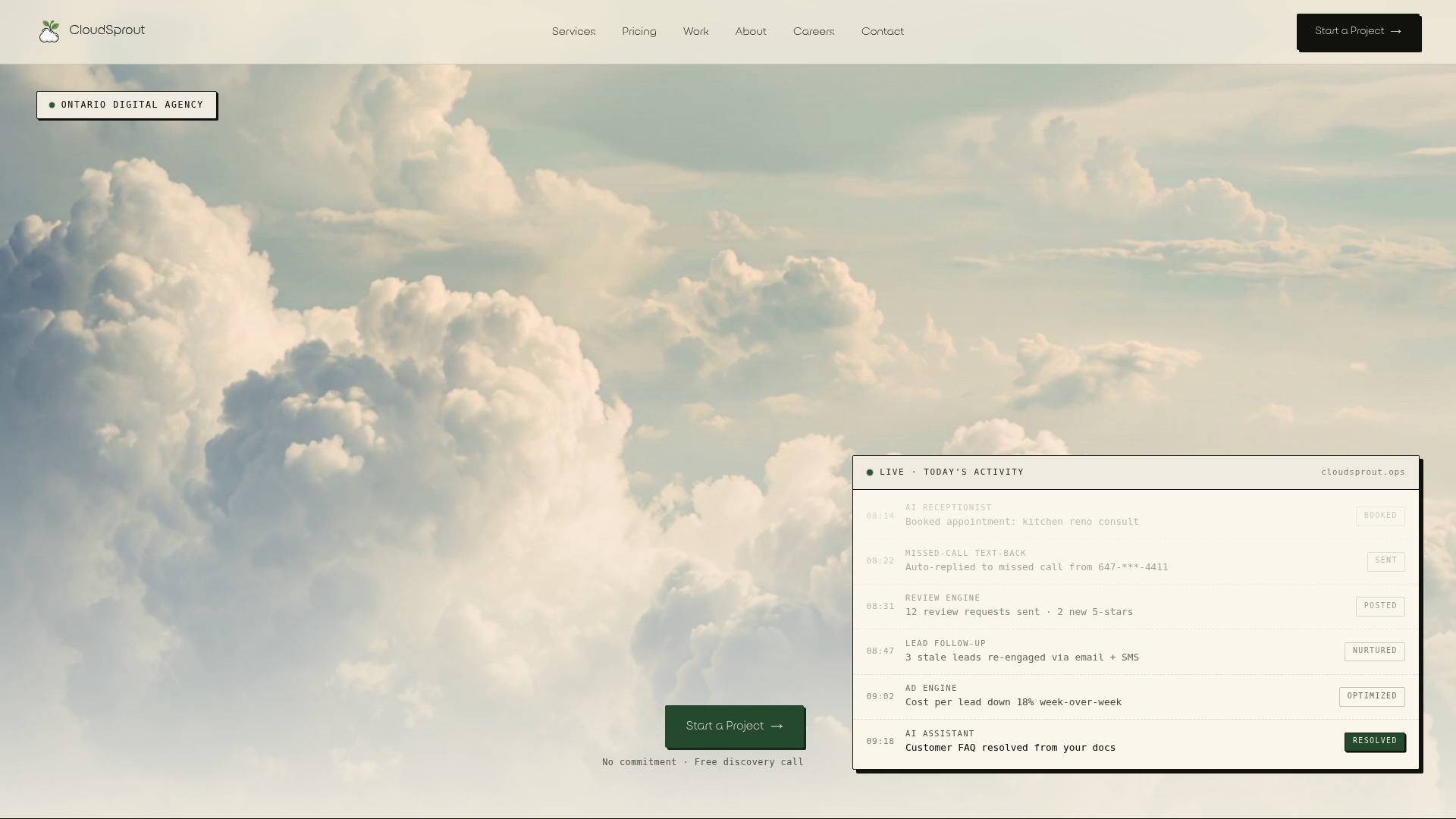
The free audit covers your current QuickBooks setup, your CRM options or existing system, every data type that needs to sync, and a risk checklist with an estimated budget and timeline. You leave the call knowing exactly what the integration will cost and what it will take to protect your accounting data.
If you’re ready to stop re-entering data between two systems, book your free audit through Cloudsprout’s CRM and ERP services page and get a clear plan before you connect anything.
Sources
- QuickBooks Online integrations | QuickBooks
- Connect HubSpot and QuickBooks Online | HubSpot Knowledge Base
- The Best QuickBooks CRM on the Market — Method
- Connect CRM to QuickBooks: Setup Guide | Costifys
- QuickBooks Online Backup: Why Restore Is the Hard Part | Akika Labs
This article is general information, not a substitute for advice from a qualified financial advisor. Consult a qualified financial professional about your own circumstances before acting on anything here.
FAQ
Is there a CRM that integrates directly with QuickBooks?
Yes. Method CRM and HubSpot both offer native QuickBooks Online connectors with two-way sync for customers, invoices, and payments. QuickBooks Online also connects with over 800 business apps, many of which are CRMs.
Can you use QuickBooks Online as a CRM on its own?
QuickBooks Online includes a Customer Hub with contact records, invoice history, and basic KPI dashboards in the Advanced tier. It works for simple quote-to-invoice workflows but lacks a sales pipeline, automated follow-ups, and team-level deal tracking.
Is QuickBooks Desktop going away in 2026?
Intuit has been migrating users to QuickBooks Online and has discontinued new Desktop subscriptions in Canada. If you’re still on Desktop, check Intuit’s current Canadian product page for your specific version’s support status before planning any CRM integration.
Why do accountants sometimes push back on QuickBooks CRM integrations?
The concern is usually about data integrity: a CRM with write access to QuickBooks can overwrite finalized invoices, sync into closed periods, or create duplicate customers that distort financial reports. Those risks are real but preventable with proper field mapping, conflict resolution rules, and a tested backup plan before go-live.
How long does a QuickBooks CRM integration take to set up?
A native connector with standard field mapping takes a few hours to configure and a day or two to test properly. A managed integration with custom fields, historical backfill, and multi-province tax mapping typically runs several weeks from discovery audit to go-live.
Recommended
Less reading. More growing.
We build the systems these articles describe. Websites, AI follow-up, reviews, automation. And run them for you.
Keep reading