
The fastest way to get consistent social posts out the door is a content calendar you’ll actually open. For most small businesses, that means Google Sheets for solo owners, Notion when you want briefs and drafts in one place, or Asana and Smartsheet when a team needs approvals. Pick the simplest tool your workflow will support, copy a free template, fill one week of posts, and block 30 minutes every Monday to plan ahead.
According to a PR Newswire survey, 93% of small businesses struggle with common social media challenges. A structured planning calendar is the single most practical fix, and you don’t need to buy anything to start.
Four ready starting points:
- Google Sheets — best for solo owners; free, shareable, zero learning curve
- Notion — best when you want the content brief, draft, and calendar in one page
- Asana or Smartsheet — best for small teams that need task assignments and approval stages
- Buffer or Hootsuite CSV export — best when you want to plan in a spreadsheet and push directly to a scheduler
Quick-start: copy one template below, fill seven days of posts, and schedule a recurring 30-minute planning slot every Monday morning.
Key Takeaways
A consistent small business content calendar works because it removes daily decision-making, keeps your team accountable, and gives you data to improve every month.
| Point | Details |
|---|---|
| Pick the simplest tool | Use Google Sheets for solo work; move to Asana or Notion only when team size demands it. |
| Plan 4–6 weeks ahead | SEO content needs lead time; social posts need 1–2 weeks minimum to avoid last-minute scrambles. |
| Assign every row an owner | “Team” is not an owner — name one person per post so nothing falls through. |
| Batch assets monthly | Set one two-hour session per month to write captions and gather images in bulk. |
| Leave 20–30% open | Reserve calendar slots for reactive content: trending topics, local events, and timely news. |
| Cloudsprout option | Cloudsprout builds, populates, and manages the full calendar for small teams who want it done for them. |
Table of Contents
- Where to download the best free content calendar templates
- How to create a small business content calendar from scratch
- What fields and columns should your calendar include?
- How to choose the right format and tool for your team
- What does a practical weekly content workflow look like?
- Your 30/60/90-day starter plan
- Quick downloads: copy-ready starter files
- Why simple beats sophisticated every time
- Want someone to build and run this for you?
- Sources
- FAQ
Where to download the best free content calendar templates
Every tool below has a free or freemium tier. The format column tells you what kind of view you get so you can match it to how your team actually thinks.
| Tool | Format | Best for | Cost | How to copy |
|---|---|---|---|---|
| Google Sheets | Spreadsheet | Solo owners and small teams | Free | File → Make a copy in Google Drive |
| Excel | Spreadsheet | Teams already | Free / paid | Download .xlsx, open in Excel |
| Notion | Database + doc | Combined brief, draft, and calendar | Free (personal) | Duplicate the Notion template page |
| Asana | Kanban / timeline | Teams needing task assignments and approvals | Free (up to 10 users) | Use Asana’s built-in content calendar template |
| Smartsheet | Grid / Gantt | Approval workflows and reporting | Freemium / paid | Copy the Smartsheet content calendar template |
| Buffer / Hootsuite | CSV import + scheduler | Direct publishing to social channels | Freemium | Export CSV from your spreadsheet; import to scheduler |
| Later | Visual calendar + scheduler | Instagram-first visual planning | Freemium | Use Later’s built-in media calendar |
| HubSpot | Spreadsheet + CRM | Teams connecting content to leads | Free download | Download HubSpot’s free editorial calendar template |
Pipedrive’s SMB template roundup is a solid starting point if you want a pre-built Google Sheets or Excel file with the core fields already labeled. The Social Media Strategies Summit also maintains a list of 32 free content calendar templates across formats including Notion, Airtable, and scheduler-compatible CSVs.
Format types at a glance:
- Spreadsheet (Sheets / Excel): fastest to set up, easiest to share, works offline
- Kanban / board (Asana, Notion board view): visual status tracking, great for spotting bottlenecks
- Calendar view (Notion, Asana, Later): shows gaps in posting frequency at a glance
- Integrated scheduler (Buffer, Hootsuite, Later): skips the manual publish step entirely
How to create a small business content calendar from scratch
The setup takes one focused session of about two to three hours. Storyflow’s step-by-step framework recommends starting with strategy before touching any tool, and that order matters.
-
Define one 90-day objective. Be specific: “Grow Instagram followers from 400 to 700” or “Generate 10 plumbing quote requests from Google.” One goal keeps every post decision simple.
-
Choose 3–5 content pillars. These are the recurring themes your audience expects from you. A local coffee shop might use: Behind the Scenes, New Menu Items, Community Spotlight, Customer Tips, and Promotions.
-
Decide your posting cadence by capacity. Solo owner: 3 posts per week across 1–2 channels. Two-to-three person team: 5 posts per week across 2–3 channels. Small team with a dedicated social manager: daily posts across 3–4 channels. Start conservative. You can always add.
-
Pick your tool and copy a template. Use the table above. If you’re unsure, start with Google Sheets.
-
Set your column fields and status workflow. At minimum: publish date, channel, post copy, asset needed, status (Draft / Review / Scheduled / Published), and owner. Full field list is in the next section.
-
Plan 4–6 weeks ahead for blog and SEO content; 1–2 weeks for social posts. Averi’s content calendar guide recommends this split because SEO content needs keyword research and internal linking time that social posts don’t.
-
Assign owners and publish dates. Every row needs a name next to it. “Team” is not an owner.
One-week example for a local coffee shop:
| Day | Channel | Post idea | Format | CTA |
|---|---|---|---|---|
| Monday | New seasonal latte reveal | Photo + caption | “Come try it this week” | |
| Tuesday | Staff spotlight: meet your barista | Short video | Tag a friend who’d love this | |
| Wednesday | Instagram Stories | Poll: oat milk or almond milk? | Poll sticker | Vote now |
| Thursday | Google Business | Updated hours for long weekend | Text post | See full hours |
| Friday | Behind-the-scenes: Saturday prep | Reel | Follow for more |

What fields and columns should your calendar include?
A content calendar is only as useful as the information in it. Averi’s planning guide lists the core fields that prevent posts from falling through the cracks: publish date, channel, post copy, assets, CTA, content type, target pillar, funnel stage, owner, due date, status, and any tracking notes like UTM parameters.
Here’s the full column schema to copy into your template:
Five-post sample week (filled in):
| Date | Channel | Short copy | Asset needed | Status |
|---|---|---|---|---|
| — | Seasonal latte launch photo + caption | latte-photo.jpg | Scheduled | |
| July 15 | Barista spotlight video | barista-video.mp4 | Review | |
| — | Instagram Stories | Oat vs. almond poll | Stories template | Draft |
| — | Google Business | Long weekend hours update | None | Published |
| — | Saturday prep Reel | prep-reel.mp4 | Draft |
The UTM tag column is worth adding even if you don’t use it yet. When you’re ready to connect posts to website traffic in Google Analytics 4, the column is already there.
How to choose the right format and tool for your team
The best content calendar tool is the one your team will open every day. Pipedrive’s SMB guide puts it plainly: small teams succeed with simple spreadsheets or Notion, and you should move to specialized software only when volume and the number of contributors create real coordination problems.
Here’s how to match tool to situation:
-
You’re a solo owner posting 3–5 times a week: Google Sheets or Excel. No login friction, no onboarding, works on any device. Download a template, rename the columns, and go.
-
**You write long captions or blog posts and want everything in one place. Notion. Each row in the database can open into a full page where you write the brief, draft the copy, and attach the image. No switching between apps.
-
You have two or more people creating content and someone needs to approve before publishing: Asana or Smartsheet. Asana’s content calendar template supports task assignments, due dates, and status columns that update in real time. Smartsheet adds Gantt-style timelines and approval workflows for teams that report upward.
-
**You want to skip the manual publish step entirely. Buffer, Hootsuite, or Later. All three accept CSV imports from your spreadsheet, so you can plan in Sheets and push to the scheduler in one import. Later is especially strong for Instagram-first businesses because its visual grid preview shows exactly how your feed will look before anything goes live.
-
You’re connecting content to CRM data or lead tracking: HubSpot’s free editorial calendar template ties posts to campaigns and contacts, which matters once you’re running email alongside social.
The decision in one line: if you need to publish, use a scheduler; if you need approvals, use a project tool; if you just need to plan, use a spreadsheet.
For a deeper look at choosing the right social media approach as an owner-operator, that guide covers the tradeoffs between DIY tools and managed services without the jargon.
What does a practical weekly content workflow look like?
A calendar without a production routine is just a list of good intentions. Here’s a five-day cycle that works for a team of one to three people:
-
Monday — Plan (30 minutes). Review next week’s calendar rows. Confirm every post has an owner, a due date, and an asset listed. Move anything incomplete from last week into the current week or cut it.
Want this running in your business without doing it yourself?
Book a Free Consultation → -
Tuesday — Create (2–3 hours). Write captions, record short videos, and pull images. Aim to finish all assets for the week in one session rather than scrambling daily.
-
Wednesday — Review (30–60 minutes). Owner or second pair of eyes reads every caption for accuracy, tone, and CTA. Update status from Draft to Review to Approved.
-
Thursday — Schedule (30 minutes). Upload approved posts to Buffer, Hootsuite, or Later. Set publish times based on your audience’s peak activity. Update status to Scheduled.
-
Friday — Monitor and repurpose (15–20 minutes). Check engagement on posts that went live this week. Note what performed well. Flag any post worth repurposing into a different format next month.
Status checklist for each stage:
- Brief: topic, pillar, channel, and CTA confirmed
- Draft: copy written, asset identified or created
- Review: proofread, brand voice checked, link tested
- Scheduled: uploaded to scheduler with correct date and time
- Published: live; engagement logged in the calendar row
Pro Tip: Batch your captions and image creation once or twice a month instead of daily. Set aside a two-hour block, write all captions for the next two to three weeks, and pair them with images in the same session. You’ll spend less mental energy context-switching, and your posting cadence will stay consistent even during busy weeks.
The SMB Hub’s editorial calendar template includes a monthly and weekly layout with built-in reminders for batching and repurposing that you can adapt directly.
Your 30/60/90-day starter plan
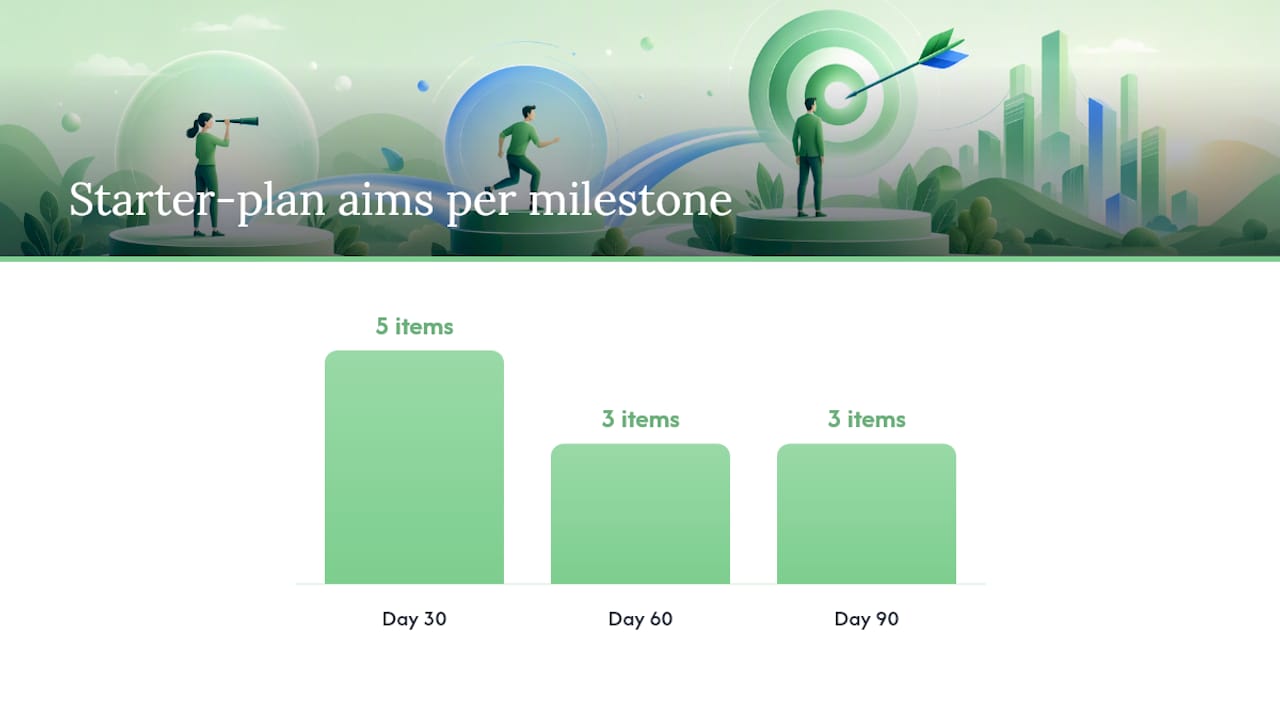
The first 90 days are about building the habit, not perfecting the content. Here’s what to aim for at each milestone, with sample weeks for two common local business types.
Milestones:
- Day 30: Posting consistently at your chosen cadence. Baseline analytics captured (reach, engagement rate, profile visits). No gaps in the calendar.
- Day 60: At least one content pillar is clearly outperforming the others. You’ve tested two or three CTA variations. You know which post format your audience responds to most.
- Day 90: Double down on what worked. Tighten the funnel by connecting top-performing posts to a landing page or offer. Consider adding one new channel if capacity allows.
Sample week: local café (Instagram + Facebook + Google Business)
- Monday: Instagram photo of the week’s special drink (Awareness)
- Tuesday: Facebook video of a barista technique (Awareness)
- Wednesday: Instagram Stories poll or question sticker (Engagement)
- Thursday: Google Business post with current hours or event (Local SEO)
- Friday: Instagram Reel showing the café atmosphere (Awareness / Reach)
- KPIs to watch: reach, saves, profile visits, direction clicks on Google
Sample week: local plumber (Facebook + Google Business + Instagram)
- Monday: Facebook before-and-after photo of a recent job (Consideration)
- Tuesday: Google Business post: “Available this week for drain cleaning” (Conversion)
- Wednesday: Instagram tip post: “3 signs your water heater needs attention” (Awareness)
- Thursday: Facebook customer review share or testimonial graphic (Trust)
- Friday: Instagram Stories: “Book a free estimate this weekend” (Conversion)
- KPIs to watch: link clicks, quote form submissions, Google Business calls
For a more detailed Canadian business social media content plan with real-world examples for professional services, that resource covers pillar planning and distribution in more depth.
If building and running this system feels like one more thing on an already full plate, Cloudsprout’s done-for-you content and social services handle the calendar, creation, and scheduling so you don’t have to. The free digital audit is a good first step to see where your current content stands.
Quick downloads: copy-ready starter files
Getting started takes less than five minutes with any of these:
-
Google Sheets template: Open Pipedrive’s free SMB content calendar, scroll to the download link, then File → Make a copy in your Google Drive. First edit: replace the placeholder channel names with your actual platforms.
-
Excel template: Download the .xlsx version from the same Pipedrive page or HubSpot’s free editorial calendar. Open in Excel, rename the tabs by month, and add your team members’ names to the Owner column.
-
Notion template: Search “content calendar” in Notion’s template gallery, click Duplicate, and the page lands in your workspace. First edit: update the Channel and Pillar select options to match your business.
-
Asana template: Inside Asana, go to Templates → Marketing → Content Calendar. Customize the task fields and add your team members. The mobile app keeps everyone updated on the go.
-
Smartsheet template: In Smartsheet, browse Templates → Marketing → Editorial Calendar. Copy the sheet, set your approval workflow, and assign column owners.
-
Buffer / Hootsuite / Later CSV: Build your plan in Google Sheets using the column schema above, export as CSV (File → Download → .csv), and import directly into your scheduler’s bulk upload tool.
Pro Tip: Store every template in a shared Google Drive folder or Notion workspace with edit access for all contributors. A calendar that lives only on one person’s laptop disappears the moment that person is unavailable.
Why simple beats sophisticated every time
The content calendars that actually get used are almost never the most elaborate ones. Owner-operators who try to build a 12-tab spreadsheet with conditional formatting and auto-populated analytics dashboards on day one almost always abandon it by week three. The ones who post consistently for six months straight usually started with a single Google Sheet and five column headers.
There’s a counterintuitive truth here: the calendar’s job is not to organize your content. Its job is to lower the decision cost of posting. When you open a blank week and already know the pillar, the channel, and the format, you’re writing a caption, not making a strategy call. That’s the difference between posting and not posting.
One idea worth stealing: take a single Instagram carousel you’ve already made and strip it into three LinkedIn text posts. Same research, same point of view, three new pieces of content. Most small businesses treat repurposing as an afterthought. Build it into the calendar as a recurring row labeled “Repurpose” and it becomes a habit instead of a task.
Want someone to build and run this for you?
Cloudsprout builds and manages content calendars for owner-operators and small teams across Ontario who don’t have time to run social media on top of everything else. The service covers calendar setup, content creation, scheduling, and monthly performance reporting, all in-house with no outsourcing and no long-term contracts.
If you’d rather hand this off than DIY it, the free social week trial is the lowest-friction way to see what a done-for-you content week actually looks like for your business. No commitment, no agency retainer. Just a week of real content, planned and scheduled for you.
Sources
FAQ
What is the best free content calendar for a small business?
Google Sheets is the best free starting point for most small businesses: no cost, shareable with a link, and easy to customize. Notion is the better pick if you want briefs and drafts in the same place as your calendar.
What should be included in a content calendar?
At minimum: publish date, channel, post copy, asset needed, CTA, owner, due date, and status. Adding pillar, funnel stage, and a UTM tag column gives you the data to improve over time.
What is the best platform for a content calendar?
It depends on your workflow. Google Sheets or Excel for planning only; Asana or Smartsheet when you need approvals; Buffer, Hootsuite, or Later when you want direct publishing without a manual upload step.
What makes a good business content calendar?
Consistency and simplicity. A calendar your team opens every week and fills in reliably beats a sophisticated system nobody uses. Start with one week planned ahead, then extend to four to six weeks as the habit builds.
How do I align my content calendar with my business goals?
Set one specific 90-day objective before filling in any posts, then map each content pillar to a stage of the buyer journey: awareness posts build reach, consideration posts answer questions, and conversion posts drive a specific action like booking or buying.
Recommended
Less reading. More growing.
We build the systems these articles describe. Websites, AI follow-up, reviews, automation. And run them for you.
Keep reading