

An AI scheduling assistant works best when it directly connects to your calendar and email, not when it just sends fancy booking links. For most small business owners, the right move is testing one integrated tool for two weeks before signing anything, or skipping the trial-and-error entirely by having a managed provider set it up correctly the first time.
TL;DR:
- Successful AI scheduling tools must connect bidirectionally with calendars like Google or Outlook to prevent double bookings and ensure real-time updates.
- During a trial, verify the tool’s automation scope, permission requirements, and privacy policies, especially whether your data is used for AI training or if opt-outs are available.
- Integration of video links, CRM updates, and time zone handling is crucial for high-touch or geographically dispersed businesses.
- Setup friction, particularly permission confusion, heavily influences whether a small business will effectively adopt and retain the scheduling assistant.
- For teams of five or fewer with time and tech capacity, DIY setup is feasible, but larger or busier teams benefit more from managed rollout to avoid early mistakes.
Table of Contents
- What Does an AI Scheduling Assistant Actually Do?
- What Should You Actually Check Before Choosing One?
- How Calendar Sync and Integrations Actually Work
- What Should You Ask About Privacy Before Signing Up?
- What Does an AI Scheduling Assistant Cost, and Is It Worth It?
- How Do You Roll Out a Scheduling Assistant Without Disrupting Your Team?
- How Cloudsprout Implements AI Scheduling for Small Businesses
- What Small Businesses Are Actually Saying About These Tools
- When Should You DIY This and When Should You Hire It Out?
- Ready to Stop Managing Your Calendar Manually?
- Sources
- FAQ
What Does an AI Scheduling Assistant Actually Do?
If you’ve ever spent 20 minutes emailing back and forth just to book a 15 minute call, you already understand the problem an AI scheduling assistant solves. But the term covers three very different products, and mixing them up is why so many business owners end up disappointed.
The first type is link based booking: think a simple page where clients pick an open slot from your calendar. It’s the oldest and simplest model, and it works fine for straightforward appointments like haircuts or consultations. The second type is email native scheduling, sometimes called CC to schedule, where you loop in an AI assistant’s email address on a thread, and it negotiates the meeting time directly with the other person. The third type is conversational, where you type or speak a request like “find me 30 minutes with Sarah next week” and the assistant scans calendars and proposes times.
Each style suits a different kind of business. A contractor with straightforward site visit bookings probably wants link based scheduling. A consultant juggling client calls across time zones benefits more from email native tools, since clients often reply to a real-feeling assistant faster than they click a link. Product examples like UCals lean into conversational commands, while others build their entire workflow around inbox threads.
Beyond booking, the better tools handle a few other jobs:
- Automated meeting finding across multiple calendars, including shared team calendars.
- Smart rescheduling when someone cancels or a conflict pops up.
- Focus time protection, which blocks chunks of your day so meetings don’t eat every open hour.
- Task to calendar conversion, turning a to-do list item into a scheduled block of work time.
Most serious tools connect to Google Calendar, Outlook, and Microsoft Teams, with a smaller subset offering CRM integrations for sales teams tracking client meetings. Roundup testing from Zapier found that integration depth, not flashy AI features, is what separates tools people keep using from the ones they abandon after a month.
The common failure mode is permission confusion. An assistant asks for calendar access, and business owners grant broad edit permissions without realizing the tool can now move or cancel meetings on its own. Read the permission prompt before you click accept, every time.
What Should You Actually Check Before Choosing One?
Trial periods are cheap. A bad rollout that confuses your front desk staff or double books a client is not. Before you commit budget or time to any AI calendar manager, run through this checklist during the sales call or trial.
- Integration coverage. Confirm two-way sync, not one-way. One-way sync means the tool reads your calendar but changes made elsewhere don’t reliably show up, which causes double bookings.
- Automation scope and approval controls. Ask whether the tool can auto-accept meetings or whether every booking requires your sign-off, at least during the first month.
- Admin and team policy features. For teams of five or more, check for domain-wide rules, delegation options, and an audit log showing who changed what.
- Privacy and data access questions. Ask directly whether your calendar data trains the vendor’s AI models, and whether you can opt out.
- Usability across channels. Test the mobile app and, if offered, voice commands, since a tool that only works well on desktop won’t help a tradesperson booking jobs from a truck.
- Cost shape and trial metrics. Decide upfront what “working” looks like: fewer reschedules, hours saved per week, or faster client response times.
Pro Tip: Set a hard two-week trial window and track just one metric, like number of scheduling emails you personally sent. If that number doesn’t drop by at least half, the tool isn’t earning its subscription cost.
Wirecutter’s hands-on testing of AI scheduling apps found that the strongest tools force you to do a bit of the setup work upfront, like defining your working hours and buffer preferences, rather than promising to “just figure it out.” According to Wirecutter’s review, tools that skip that setup step tend to make more scheduling mistakes later.
How Calendar Sync and Integrations Actually Work
The difference between a scheduling tool you love and one you uninstall within a week almost always comes down to sync behavior. Two-way sync means changes flow both directions in near real time: if a client reschedules through the tool, your Google Calendar updates immediately, and if you manually move a meeting in Outlook, the assistant sees that change too. One-way sync only reads your calendar, which sounds fine until someone double books you because the assistant didn’t know about a meeting you added manually an hour ago.
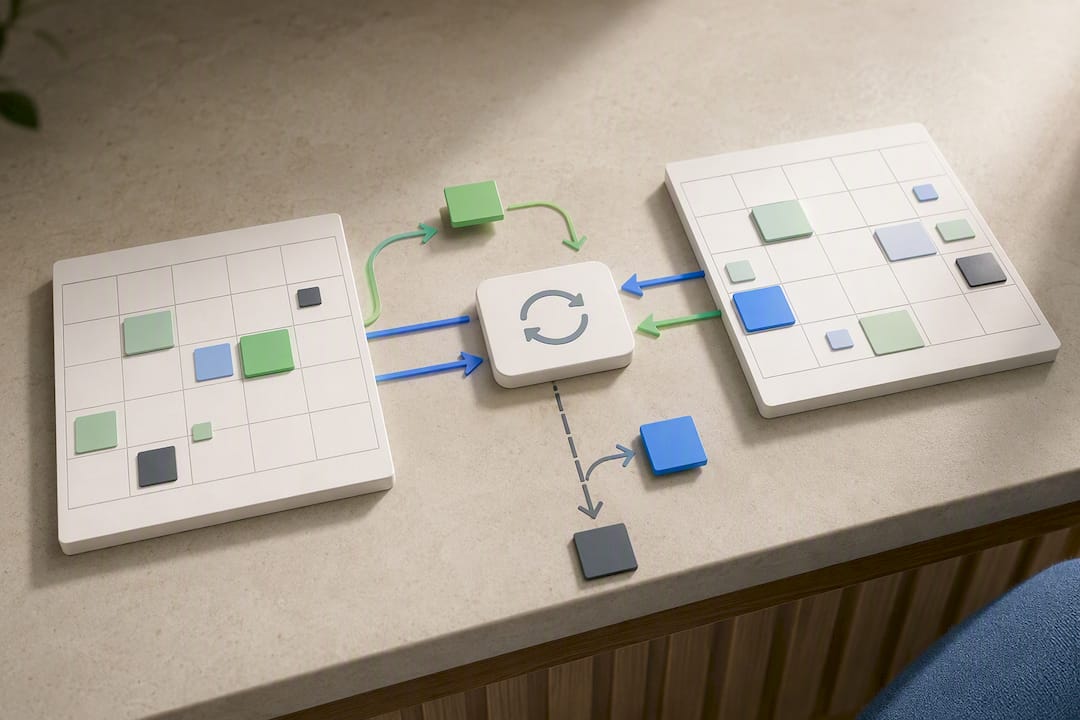
Marketplace documentation is a genuinely useful place to verify this before you buy. The CalendarBridge listing on Microsoft Marketplace spells out exactly which calendar platforms it supports and how synchronization behaves technically, which is more reliable than trusting a sales page’s marketing copy.
A few other integration behaviors matter more than people expect:
- CRM connectors should log meeting outcomes automatically, not just the booking itself, so your sales pipeline stays current without manual entry.
- Video conferencing links (Zoom, Teams, Google Meet) should attach automatically to every booked meeting, not require a separate step.
- Customer-facing teams handling high-touch relationships, like a law firm or accounting practice, often do better with CC-to-schedule than a public booking link, since it feels more personal and avoids exposing your full calendar.
- Time zone handling and daylight saving transitions trip up a surprising number of tools. Test a booking across a time zone change before fully trusting the assistant with client-facing scheduling.
Mobile and voice behavior deserves a real test too, not just a glance at the app store screenshots. A tradesperson who wants to say “book Thursday afternoon for the Henderson job” while driving needs a tool that handles voice input reliably, not one that requires typing on a tiny screen.
What Should You Ask About Privacy Before Signing Up?
Handing an AI tool access to your calendar means handing it access to client names, meeting locations, and sometimes sensitive details buried in event notes. That’s worth pausing on before you grant “full access” out of convenience.
Start with scope. Most tools offer read-only access or full read-write access, and you should default to the narrowest scope that still lets the tool do its job. A booking assistant rarely needs permission to delete events outright.
Ask the vendor directly whether your calendar data is used to train their underlying AI models, and whether there’s an opt-out. This question alone filters out a surprising number of vendors who hedge or dodge.
- Request data residency details: where is your data physically stored, and does the vendor offer export or deletion on request?
- Ask for audit logs showing every automated change the assistant makes to your calendar.
- For teams, use dedicated service accounts rather than a shared login, so access can be revoked from one person without disrupting everyone else.
- Set a retention policy for meeting notes and transcripts if the tool records or summarizes calls.
User reviews on G2 for tools like Clockwise repeatedly mention setup friction and permission confusion as the top early complaints, more often than complaints about the AI itself being inaccurate. That’s a useful signal: the risk usually isn’t the AI making a bad decision, it’s the AI having more access than the business owner realized they’d granted.
What Does an AI Scheduling Assistant Cost, and Is It Worth It?
Pricing generally falls into three shapes: per-user (a flat monthly fee per team member with access), per-seat (similar, but often tiered by feature level), and per-active-user (you only pay for people who actually used the tool that month). Per-active-user sounds appealing for small teams with fluctuating usage, but watch for minimum seat requirements that erase the savings.
The hidden cost is usually setup time, not the subscription fee itself. A small team may spend several hours configuring calendars, permissions, and team policies before smooth operation. That’s real payroll cost even before the monthly fee kicks in.
Here’s a rough way to think about ROI for a small team:
- If each of five employees saves 30 minutes a day previously spent on back-and-forth scheduling emails, that’s roughly 12.5 hours saved weekly across the team.
- At a reasonable hourly value, this could translate to significant weekly and monthly reclaimed time value.
- Compare that to typical monthly subscription costs, and the payback period is usually measured in weeks, not months, assuming the tool actually gets adopted.
| Business situation | Better fit | Why |
|---|---|---|
| Solo owner-operator, simple bookings | Link-based booking tool | Low complexity, minimal setup |
| Small team, client-facing | Managed rollout or email-native assistant | Needs policy controls and training |
| Growing team, CRM-dependent | Integrated assistant with CRM connector | Sales data needs to stay current automatically |
| Busy owner with no time to configure tools | Managed provider (e.g. Cloudsprout) | Faster time-to-value, less trial and error |
During any trial, ask the vendor to help you measure concrete numbers: meetings scheduled without manual intervention, reschedules avoided, and hours saved per user per week. Reviewers at Wirecutter specifically flagged these three metrics as the clearest way to tell if a tool is actually earning its cost rather than just adding another app to manage.
Want this running in your business without doing it yourself?
Book a Free Consultation →How Do You Roll Out a Scheduling Assistant Without Disrupting Your Team?
A rushed rollout is how good tools get blamed for bad implementation. Follow a sequence instead of flipping the switch for everyone at once.
- Inventory every calendar involved, including shared team calendars, meeting room bookings, and any calendar tied to a website booking form.
- Define success metrics before you start testing, not after. Pick two or three numbers, like reschedules per week or hours saved, so you’re not guessing later whether it worked.
- Run a pilot with one power user first. Pick someone who already juggles a heavy meeting load and give them two to three weeks before expanding to the full team.
- Write a short training doc and communication template so clients and coworkers understand what changed, especially if you’re switching from manual booking to CC-to-schedule.
- Set a rollback plan. Know exactly how to revert to manual scheduling if the tool causes more problems than it solves in the first week.
- Monitor closely for the first month and check in with your pilot user weekly, not just at the end of the trial.
Pro Tip: Pick your most scheduling-heavy employee as the pilot user, not your most tech-comfortable one. If the tool works for someone drowning in meetings, it’ll work for everyone else.
A related approach worth reading if you’re considering a broader AI rollout beyond scheduling is Cloudsprout’s guide to a 30-day pilot for hiring an AI employee, which applies a similar phased structure.
How Cloudsprout Implements AI Scheduling for Small Businesses
Some managed providers build AI scheduling into a business’s existing systems rather than bolting on a separate app nobody remembers to check. These projects are delivered in-house with no outsourcing, and engagements often start with a free trial that includes a full digital audit of your current calendar, website booking flow, and client communication tools.
During such an audit, a provider looks at how appointments currently move through your business: are clients booking through a contact form that then requires a manual email back and forth? Is your team using multiple calendars that don’t talk to each other? The audit maps that mess before recommending a fix, rather than pushing a one-size-fits-all tool at every client.
Implementation typically follows the same phased approach outlined above: inventory, pilot with one team member, then a full rollout once the metrics look right. Because Cloudsprout also handles CRM and ERP automation, scheduling can connect directly to your client records instead of living in a separate silo. That matters for a business already tracking leads and jobs in a CRM, since a booked meeting should update the client record automatically, not require someone to copy it over by hand.
Case studies and specific client outcomes will be added here as they become available, alongside a full bio for Cristo, the author of this guide.
What Small Businesses Are Actually Saying About These Tools
The pattern across user reviews and hands-on testing is consistent: people love the time saved once a scheduling assistant is running smoothly, and they get frustrated during the first two weeks while permissions and preferences get sorted out. That gap between “eventually great” and “rough start” is the single biggest predictor of whether a business sticks with the tool or abandons it.
Reviewers on G2 describe Clockwise-style tools as genuinely useful for protecting focus time once configured, but several mentions that the initial calendar permission setup confused non-technical staff. That’s not a knock on the AI itself, it’s a rollout problem, which is exactly why a structured setup checklist matters more than picking the “best” tool on a roundup list.
Wirecutter’s broader testing found a similar theme: tools that required a bit of upfront configuration, like defining working hours and meeting preferences, performed more reliably over time than tools promising fully automatic setup. The lesson for a small business owner is blunt: don’t trust a vendor claiming zero setup time. A little friction upfront usually means fewer mistakes later.
For businesses without dedicated IT staff, this is often the moment a managed rollout starts looking more appealing than a DIY subscription, since someone experienced handling the permission and integration setup removes most of that early frustration entirely.
When Should You DIY This and When Should You Hire It Out?
If you run a team of five or fewer, already use one calendar platform consistently, and have an hour or two a week to babysit a new tool, DIY is reasonable. Pick one integrated assistant, run the two-week pilot, and track your one metric.
The risk shows up the moment your business has more than one calendar system, a client-facing team that can’t afford scheduling mistakes, or an owner who’s already stretched too thin to troubleshoot permission settings at 9pm. That’s when DIY rollouts quietly fail: not because the tool is bad, but because nobody had the bandwidth to configure it properly.
A managed rollout compresses that learning curve. Someone who’s already seen the common failure modes, like permission confusion or one-way sync causing double bookings, catches those issues before they hit your calendar instead of after a client complains.
— Cristo
Ready to Stop Managing Your Calendar Manually?
Some providers offer an alternative to trial-and-error software shopping: instead of testing multiple scheduling tools yourself and hoping one sticks, you may get a free digital audit that maps your actual booking workflow and recommends a setup built for how your business actually runs, not a generic template.
That audit looks at your website’s booking flow, your calendar setup, and how scheduling connects (or doesn’t) to your CRM. If your site doesn’t currently support smooth appointment booking at all, Cloudsprout’s website development team can build that in from scratch, and the CRM automation side ensures every booked meeting updates your client records automatically instead of requiring manual entry. Everything is delivered in-house with month-to-month terms, so there’s no long contract locking you into a tool that turns out to be the wrong fit. Request the free audit and find out exactly where your current scheduling process is losing you time.
Sources
A few sources are worth reading directly if you want to dig deeper before choosing a tool:
- The 7 best AI scheduling assistants in 2026 — Zapier
- The Best AI Scheduling App Makes You Do the Hard Work — NYT Wirecutter
FAQ
Can AI help with scheduling?
Yes. AI scheduling assistants can automatically find open meeting times, negotiate scheduling by email, protect focus time, and sync changes across calendars, though the level of automation varies significantly by tool.
Is there a free AI scheduling assistant available?
Many vendors offer free trials or limited free tiers, which is the fastest way to test real fit before paying for a subscription. Cloudsprout’s free audit also reviews your current scheduling setup at no cost as part of evaluating whether an assistant makes sense for your business.
Can ChatGPT create a schedule?
ChatGPT can help draft a schedule or suggest meeting times based on information you type in, but it doesn’t connect directly to your calendar or make live bookings the way a dedicated AI calendar assistant does.
What is the best AI for schedule planning?
There’s no single best tool for every business. Link-based booking suits simple appointment businesses, email-native assistants suit client-facing professionals, and conversational tools suit teams juggling frequent internal meetings, so the right pick depends on your workflow.
How long does it take to fully adopt an AI scheduling assistant?
Most small teams see meaningful results within a two to three week pilot, with full team rollout typically complete within four to six weeks when following a phased setup process.
Recommended
Less reading. More growing.
We build the systems these articles describe. Websites, AI follow-up, reviews, automation. And run them for you.
Keep reading

Small Teams: Automate Customer Onboarding in 1–4 Weeks, Keep It Human