

For most small businesses, the fastest, reliable way to connect a website to a CRM is embedding a CRM form directly on the site or wiring the two together with a no-code connector like Zapier or Make. Reserve custom API work for two-way sync, ecommerce at scale, or when a plugin genuinely can’t do the job. Success looks simple: a lead fills out a form, it lands in your CRM within seconds, and a follow-up task or email fires automatically. No copy-pasting, no lost inquiries buried in an inbox.
TL;DR:
- Small businesses should start with native CRM forms or platform plugins for quick, low-cost website integration before considering no-code connectors or APIs for more complex needs.
- Proper field mapping and deduplication rules are critical to maintaining a clean, reliable CRM database and avoiding duplicate or incomplete contacts.
- Regular testing and monitoring, such as weekly form submissions, are essential to ensure the integration functions correctly and prevents data loss over time.
- Webhooks and APIs offer faster and more flexible data transfer but require secure configuration, server-side validation, and ongoing maintenance.
- Simple setup and consistent testing can significantly improve lead capture reliability, with most basic implementations taking a day or two to deploy and sustain.
Table of Contents
- How Do I Connect My Website to a CRM?
- Step-by-Step Setup: Three Paths to Go Live
- What Fields Should You Map, and How Do You Avoid Duplicate Contacts?
- How Do You Test and Maintain a Website-to-CRM Connection?
- What’s the ROI of Connecting Your Website to a CRM?
- What Has Cloudsprout Learned Building These Integrations?
- How Do You Catch Bad Data Before It Hits Your CRM?
- What Usually Goes Wrong When You First Connect a CRM?
- What I’ve Learned Watching These Projects Succeed or Quietly Fail
- Ready to Get Your Website and CRM Talking to Each Other?
- Where to Learn More About Website-to-CRM Setup
- Sources
- FAQ
How Do I Connect My Website to a CRM?
Every method to connect website to CRM systems falls into five buckets, and picking the wrong one is the number one reason SMB integrations stall out or get abandoned after month one.
Native CRM form embeds are the simplest option. You build a form inside your CRM (HubSpot, Zoho, Pipedrive, whatever you’re running), grab an embed code or snippet, and drop it into your website’s HTML or a widget block. Submissions go straight into the CRM with zero middle step. This works great for a contact page, a quote request form, or a newsletter signup. It’s limited, though: you’re stuck with whatever styling and logic the CRM’s form builder allows, and it usually can’t pull in data that lives elsewhere on your site (like a shopping cart total).
Platform plugins and extensions are the next rung up. If your site runs on WordPress, most major CRMs have a plugin that syncs form plugins like Gravity Forms or WPForms straight to your contact database. Shopify store owners get similar one-click apps that push customer and order data into a CRM the moment a sale closes. The appeal here is speed. You install, authenticate, map a few fields, and you’re live in under an hour. The tradeoff is flexibility. You get the workflow the plugin’s developer built, not the one you’d design yourself.
Middleware and no-code connectors, namely Zapier and Make, sit between your website and your CRM and translate data from one into the other. A form submission on your site triggers a “Zap” that creates a contact, assigns an owner, and sends a Slack alert to your sales rep, all without a developer touching a line of code. Tori Aaker’s guide on integrating a CRM with a website makes the case that most small businesses can skip custom development entirely and get this running with tools they already have access to. The catch is cost at scale. Zapier and Make charge by the number of “tasks” or operations run each month, and a high-traffic site can rack up a real bill.
Webhooks offer a step up in speed and control without requiring a full engineering team. A webhook is essentially an automated notification: the moment something happens on your site (a form submits, a cart abandons), a small payload of data gets pushed to a specified URL in near real time. Some purpose-built tools promise lead capture to CRM sync in under one second using signed webhooks, which shows how fast this path can move compared to batch-based syncing. Webhooks are vendor-agnostic and lighter than a full API build, but someone still needs to configure the receiving endpoint securely.
Direct API integration is the most powerful and most expensive route. This is custom code that talks to your CRM’s API directly, letting data flow both ways. A customer updates their shipping address on your site, and it updates in the CRM instantly, and vice versa. This is the right call for ecommerce operations syncing inventory and order history, or businesses that need real two-way sync rather than one-directional lead capture. It also requires a developer and ongoing maintenance when the CRM changes its API version.
Here’s a simple way to decide:
- Need something live today with zero budget for developers? Start with a native embed or plugin.
- Need custom logic, filtering, or to connect three or more tools together? Use Zapier or Make.
- Need speed and near-real-time delivery without full API complexity? Use webhooks.
- Running ecommerce, need two-way sync, or outgrowing your no-code plan’s task limits? Budget for API work.
Step-by-Step Setup: Three Paths to Go Live
Pick one path below based on the decision rules above, and don’t try to do all three at once.
Path A: Embed a CRM form (fastest, lowest cost)
- Build the form inside your CRM’s form builder, keeping fields to the minimum you actually need (name, email, phone, one qualifying question).
- Mark required fields and set validation rules (valid email format, phone number pattern).
- Copy the embed code and paste it into your website’s page editor or a dedicated landing page.
- Submit a test entry using a real email address you control and confirm it lands in the CRM within a minute.
- Turn on one simple automation: assign the new lead to an owner and trigger a welcome email or internal Slack ping.
Path B: Use Zapier or Make (flexible, moderate setup)
- Choose your trigger app (your website’s form plugin, or a generic “Webhooks by Zapier” trigger if your form tool isn’t natively supported).
- Add your CRM as the action app and map each field from the trigger to the matching CRM field.
- Insert a filter step so junk submissions (test entries, spam bot fields) never reach the CRM.
- Add a dedupe check, searching for an existing contact by email before creating a new record.
- Run a live test submission end to end and watch it land in the correct CRM pipeline stage before turning the Zap or Make scenario on for real traffic.
Path C: Webhook or direct API (most control, most setup)
- Configure a receiving endpoint on your server or middleware platform to accept the webhook payload.
- Secure it with a signing secret or OAuth 2.0 so no unauthorized source can push fake data in.
- Validate every field server-side before it touches the CRM, rejecting malformed emails or missing required fields.
- Build retry logic for failed deliveries. A CRM outage shouldn’t mean a lost lead. According to a CRM integration website guide from GitNexa, production-grade API work needs secure server-side authentication and real error handling, not a quick script.
- Log every transaction so you can trace exactly what happened when something breaks.
Before flipping any of these live, run through this checklist: field mapping confirmed, lead owner assignment working, welcome email or task creation firing, and the new contact landing in the correct pipeline stage rather than a default “unassigned” bucket.
Pro Tip: Never hardcode an API key or CRM secret into your website’s front-end JavaScript. Anyone can view your page source and steal it. Route sensitive writes through a server-side proxy instead.
What Fields Should You Map, and How Do You Avoid Duplicate Contacts?
Field mapping is the single most overlooked part of a website-to-CRM setup, and it’s the reason so many integrations produce a CRM full of half-blank, duplicated, useless records within a few months.
Map every field your form actually captures to its CRM counterpart: full name, email, phone, company, source page, and any qualifying dropdown (budget range, service interested in). According to Shopify’s guide to CRM integration, incomplete field mapping and missing dedupe rules are two of the most common failure points that leave businesses with fragmented, unreliable records instead of one clean pipeline.
Deduplication rules matter just as much as mapping. Set email as your primary matching key, since it’s the field least likely to have typos or formatting inconsistencies. When a new submission matches an existing contact’s email, update that record instead of creating a duplicate, and decide upfront whether new form data overwrites old values or gets appended as an activity note.
A few habits keep your data usable long after launch:
- Standardize dropdown values so “Small Biz,” “small business,” and “SMB” don’t become three different segments.
- Capture UTM parameters (source, medium, campaign) on every form so you know which marketing channel actually produced the lead.
- Validate email format and required fields server-side, not just with front-end JavaScript that a bot can bypass.
- Clean and dedupe your existing contact list before running a bulk historical sync, so you’re not importing years of duplicate junk into a fresh integration.
Statistic Callout: Companies use a wide range of SaaS applications, according to Statista’s SaaS usage data, which is exactly why a single, clean source of truth for contact data matters more each year as tool stacks grow.
How Do You Test and Maintain a Website-to-CRM Connection?
An integration that worked perfectly on launch day can silently break three months later after a plugin update, and nobody notices until a customer complains that nobody called them back.
- Submit a full end-to-end test using obviously fake but realistic data (a test name, a dedicated test email inbox) and confirm it appears in the CRM with every field mapped correctly.
- Turn on logging and webhook retry settings so a failed delivery gets a second and third attempt instead of vanishing.
- Set up an error alert, even a simple email notification, that fires the moment a submission fails to sync.
- Assign one person, usually the office manager or whoever owns the website, to run a five-minute smoke test every week and after any plugin, theme, or CRM update.
- Document the last known-good configuration so if something breaks, you can compare current settings against it fast.
Common breakage scenarios include a CRM API version update that changes a field name, a WordPress plugin update that resets form settings, and an expired API key that silently stops all future submissions. Catching these usually just takes that weekly test.
Pro Tip: Set a recurring calendar reminder for “test the website form” every Monday morning. It takes ninety seconds and it’s the single cheapest insurance policy against losing leads you’ll never know you lost.
What’s the ROI of Connecting Your Website to a CRM?
The core benefit is a single source of truth. Instead of a lead sitting in an email inbox for two days before someone remembers to follow up, it lands in the CRM instantly and triggers a task, a welcome email, or a Slack alert the moment it arrives. Shopify’s CRM integration guide frames this exact shift, automations firing the second a form is submitted, as the primary payoff businesses get from wiring their site to their CRM.
Zendesk describes CRM integration as an ongoing digital transformation strategy rather than a one-off project, and that framing matters for SMBs specifically: the value compounds as you connect more tools, not just the website form.
Here’s a rough ROI check you can run with your own numbers:
- Estimate how many leads currently get a delayed or missed follow-up each month.
- Multiply that by your average close rate and average deal value.
- Compare that number against the cost of a no-code connector plan (often under $50 a month for a small business’s volume) or a few hours of setup time.
If your website generates fewer than a handful of leads a week, a native embed or a Zapier flow you build yourself is usually enough. Once you’re running ecommerce, need two-way sync, or your no-code plan’s task limits keep getting hit, that’s the signal to bring in a developer or an agency that does this work regularly.
What Has Cloudsprout Learned Building These Integrations?
Cloudsprout runs custom website development and CRM automation entirely in-house, with no outsourcing, for owner-operators across trades, food service, professional services, non-profits, and ecommerce throughout Ontario and Canada. That in-house structure matters here specifically: the team that builds your website is the same team that wires the CRM behind it, so nothing gets lost in a handoff between a web contractor and a separate automation vendor.
A few patterns show up across most small business projects:
Want this running in your business without doing it yourself?
Book a Free Consultation →- Most SMB clients start with a native form embed or a no-code connector, then graduate to deeper automation once the basics are proven out.
- Field mapping and dedupe setup typically take longer than the actual technical connection, which is exactly why the mapping section above deserves real attention.
- Simple, well-tested integrations outperform complex ones that nobody maintains after launch.
A typical CRM integration project runs from a few days for a simple embed setup to two to four weeks for a full automation build with lead routing, task creation, and pipeline logic, detailed further in Cloudsprout’s guide to automating lead routing for small businesses.
How Do You Catch Bad Data Before It Hits Your CRM?
Form validation is your last line of defense before junk data reaches your CRM, and skipping it is how you end up with contacts named “asdf” and phone numbers that are seven digits long.
Validate on the front end first for a good user experience: check email format, require phone numbers to match a pattern, and flag empty required fields before the visitor even hits submit. But never stop there. Client-side validation can be bypassed by bots, browser extensions, or a user with JavaScript disabled, so every field needs a second check server-side before it’s written to the CRM.

Good error feedback closes the loop for the visitor. Instead of a generic “something went wrong” message, tell them exactly what’s missing: “Please enter a valid email address” beats a blank refresh every time. Real-time inline validation, the red border and message that appears the moment someone types an invalid email, catches most mistakes before submission ever happens.
For the data that does slip through, build a simple rejection log. If a submission fails validation, capture what was submitted and why it failed, so you can spot patterns (a broken phone field mask, a confusing form label) instead of just losing that lead’s information entirely. And always sanitize free-text fields against script injection before they touch your CRM, particularly if that data gets displayed anywhere internally.
What Usually Goes Wrong When You First Connect a CRM?
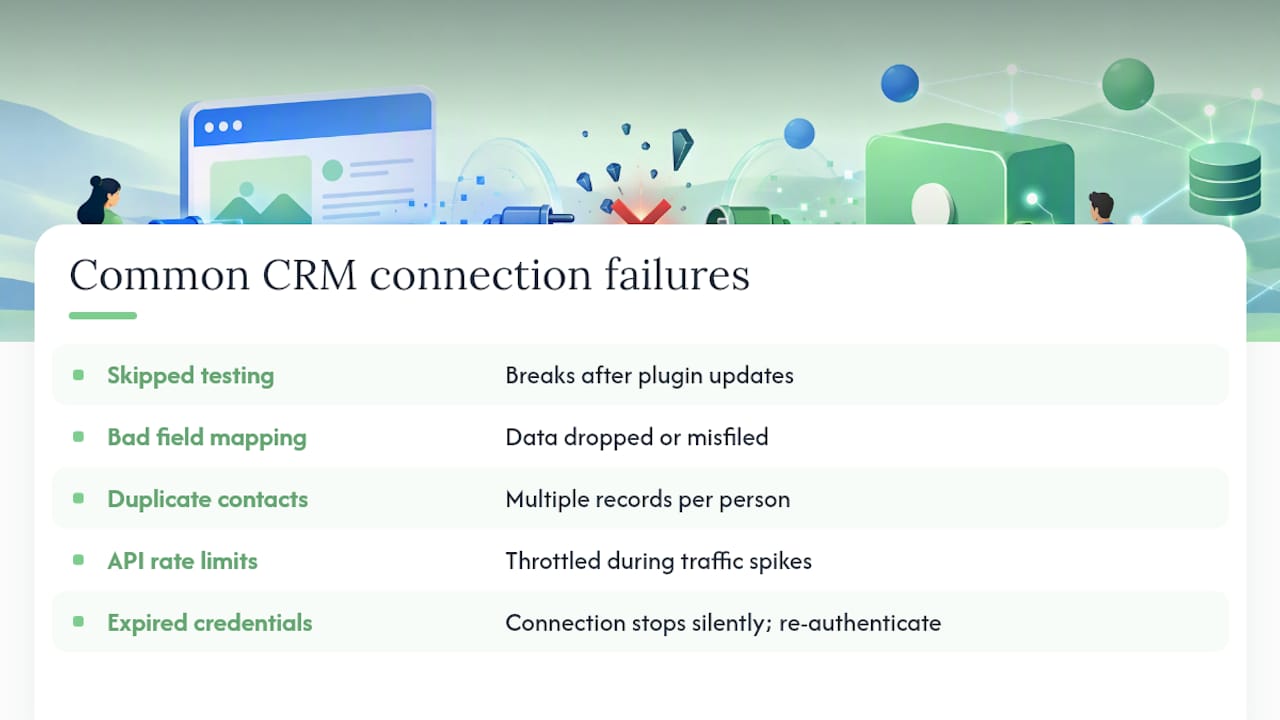
The most common failure is skipping the test step entirely. A form gets connected, looks fine in a quick check, and then breaks two weeks later when a plugin updates and nobody’s watching.
The second most common mistake is mapping fields loosely. “First Name” on your website form needs to map to the exact “First Name” field in your CRM, not a similarly named custom field that nobody uses. A mismatched mapping either silently drops data or dumps it into the wrong CRM field where nobody thinks to look for it.
Duplicate contacts are the third recurring headache. Without an email-based dedupe rule, every repeat visitor who fills out your form twice creates a second, third, or fourth version of themselves in your CRM, and your sales team ends up working from a fragmented, unreliable list.
API rate limits catch ecommerce sites off guard during high-traffic periods (a holiday sale, a viral social post). If your integration hits the CRM’s API too many times too fast, it can get temporarily throttled or blocked, and leads start bouncing.
And finally, expired credentials quietly kill more integrations than any dramatic technical failure. An OAuth token expires, an API key gets rotated for security, and the connection just stops working with no visible error message anywhere on the front end. Quick fixes: re-authenticate the connection, check your CRM’s integration log for failed webhook deliveries, and always test with a real submission after any platform update rather than assuming everything still works.
What I’ve Learned Watching These Projects Succeed or Quietly Fail
A bakery in a strip mall with a five-page brochure website added one embedded CRM form to their “Order a Cake” page. That’s it. No custom API, no developer, just a form built inside their CRM and pasted into an existing page. Within a month, every cake inquiry landed in a pipeline instead of a shared inbox three people forgot to check, and their owner could see exactly how many leads never got a reply. That gap, invisible before the integration, was the actual problem the whole time.
The surprising part isn’t the technology. It’s how rarely anyone tests the form after it’s live. Weekly smoke tests sound almost too simple to matter, but a plugin update or an expired API key breaks these connections quietly, with zero error message on the front end. The visitor thinks their submission went through. It didn’t.
If this were a 30-second video: hook on “your website might be eating your leads and you’d never know,” cut to a phone screen submitting a form, cut to an empty CRM dashboard where the lead should be, then the takeaway: test your own form once a week, using your own email address, and watch what happens.
The gap between a website that looks like it works and one that actually delivers leads is rarely dramatic. It’s usually one missed test.
— Cristo
Ready to Get Your Website and CRM Talking to Each Other?
Some agencies offer an in-house alternative to hiring separate developers and automation contractors for connect website to CRM projects, where one team builds and maintains both sides of the connection instead of two vendors passing the problem back and forth. That matters most the week something breaks: you call one team, not two.
Every project can start with a free digital audit looking at the current site, CRM status, and where leads are getting lost between the two. From there, a plan is built, running a small pilot integration (usually a single form or workflow), and then expanding it once it’s proven out, typically with no long-term contract and transparent monthly pricing. If you’re weighing whether this is a Zapier afternoon or a real build, a good next step is a look at custom website development built with the CRM connection planned in from day one, rather than bolted on after launch. Reach out for the free audit and find out exactly where your current setup is leaking leads before you spend a dollar fixing it.
Where to Learn More About Website-to-CRM Setup
For platform-specific detail beyond what fits here, Shopify’s own guide to CRM integration covers commerce-to-CRM patterns for online stores. Zendesk’s explanation of CRM integration strategy is worth a read for the bigger-picture case on why this is ongoing work, not a one-time task. For a practical, no-jargon walkthrough written for small business owners, Tori Aaker’s guide to connecting a CRM to your website is a solid starting point. And for readers pairing AI-driven follow-up with their new lead flow, AmmarAI’s guide to AI for small business marketing covers how automation extends beyond the CRM itself.
Sources
FAQ
What Is a CRM for a Website?
A CRM for a website is the system that receives and organizes every lead your site generates, whether through a contact form, a chat widget, or an ecommerce checkout, so no inquiry sits unanswered in an inbox.
Can I Use Wix as a CRM?
Wix has basic built-in contact management, but it lacks the pipeline stages, automation rules, and reporting a dedicated CRM offers. Most growing businesses connect their Wix site to a real CRM using a native app or a no-code connector rather than relying on Wix alone.
Will CRM Be Replaced by AI?
No. AI is being layered into CRMs to score leads, draft follow-ups, and flag at-risk deals, but the CRM itself still serves as the structured record of every contact and interaction that AI tools need to work from.
What Are Some Good CRM Tools for a Website?
The right tool depends on your form volume and technical comfort: native embeds work for simple contact forms, Zapier or Make handle flexible multi-step automations, and a direct API integration fits ecommerce or two-way sync needs. Cloudsprout builds and configures whichever combination fits a specific business’s website and sales process.
How Long Does It Take to Connect a Website to a CRM?
A basic embedded form can go live in under a day. A full no-code automation with lead routing and follow-up tasks typically takes a few days to two weeks, and a custom API build with two-way sync can run two to four weeks depending on complexity.
Recommended
Less reading. More growing.
We build the systems these articles describe. Websites, AI follow-up, reviews, automation. And run them for you.
Keep reading

Small Teams: Automate Customer Onboarding in 1–4 Weeks, Keep It Human