

Yes, you can move your business email to Google Workspace and keep the exact address your customers already use. Google says that once you’ve chosen a plan, you can copy your email while keeping an existing, domain-based address. The safe order is simple: set up Workspace, copy the old mail across, then change your DNS records last, so mail never has a gap.
The scary version of this story is the one every owner pictures: a Monday morning, no email, and a customer quote sitting in limbo. It almost never happens when the steps run in the right order. Below is that order, with the Microsoft 365 route, the DNS records that matter, the errors you may see, and how to check afterward that nothing was missed.
TL;DR
- You keep your domain and addresses ([email protected]). The move changes where mail is stored, not what people type.
- Copy the old mail first and change your MX record last. Until that switch, everyone keeps using the current system.
- From Microsoft 365, Google’s data migration tool matches users, copies mail, and lets you run a second “delta” pass for anything new or failed.
- Plan your DNS: one MX record for new accounts, plus SPF, DKIM and DMARC so your mail lands in inboxes.
- Test with a pilot user first, then verify with a checklist after cutover.
Table of Contents
- What actually happens when you “migrate” email
- Before you start: the 30-day prep
- Migrating from Microsoft 365 (Office 365) to Google Workspace
- The DNS changes that make it work
- Cutover day: a calm sequence
- How to check that nothing was missed
- Common errors and what to do
- Our perspective
- Want us to handle the move?
- FAQ
- Sources
What actually happens when you “migrate” email
Your email has three parts, and people mix them up.
- The address, like [email protected]. It belongs to your domain, which you own.
- The mailbox, the place where old messages, folders, contacts and calendar events live today (Microsoft 365, a web host, an old IMAP server).
- The routing, a set of DNS records that tell the internet which provider receives mail for your domain.
Migrating means copying the contents of the mailbox into Google, then pointing the routing at Google. Your address never changes. That is why the order matters: copy first, route last.
Google’s Quick Start Guide for medium-size businesses says you can import emails, calendar events and contacts directly from Microsoft Exchange or another IMAP server, or let your team import their own data. It also says the setup process can import up to 10 users from Microsoft Exchange Online or a personal Google Account into a new Workspace account. For a business of 1 to 50 people, that covers most situations.
Before you start: the 30-day prep
Most migration pain comes from skipping preparation. Google’s own switching guide for users suggests starting about 30 days before the switch. That means cleaning up email and folders, keeping your folder structure to around 10 folders for a smoother migration, and blocking time in your calendar on the day you switch.
Here is a practical version for a small Ontario business.
- Make a list of every mailbox. Include the shared ones: info@, orders@, accounting@. Owners forget these, and they often hold the most important mail.
- List every alias and forwarding rule. If sales@ forwards to a person, you will need to recreate that.
- Find out who controls your DNS. It might be your domain registrar, your web host, or the person who built your website. You need the login before cutover day. If you can’t find it, sort that out first.
- Note every service that sends email as you. Your website contact form, your invoicing software, your newsletter tool and your booking system all send mail using your domain. They matter later for SPF.
- Clear out the junk. Old newsletters and years of automated notifications slow the copy and add nothing.
- Pick a quiet window. A Friday afternoon is a bad time. Early in the week, outside your busiest season, is better. A plumber should not cut over during a cold snap; a caterer should not do it the week of a wedding rush.
Run a pilot with one or two people
Google recommends running a pilot with a small number of users to evaluate Gmail, data migration and mobile access before the full switch. The same guide notes that a pilot doesn’t interrupt anyone’s current mail service, and everyone keeps using their current address. Pick yourself and the most tech-friendly person on your team. Migrate those two mailboxes, open them on a phone and a laptop, and see what looks odd before you touch anyone else.
Migrating from Microsoft 365 (Office 365) to Google Workspace
If your mail lives in Microsoft 365, the route is Google’s data migration tool in the Admin console, which connects to Exchange Online. According to Google’s data import help page (the Spanish-language version), after you connect your Exchange Online and Workspace accounts, the tool automatically finds users in both and tries to match them by similar addresses. You can then run a delta import to copy new or updated data, or items that failed the first time.
In plain steps:
- Create your Workspace account and verify your domain. Add your users with the same usernames as their current addresses so matching works cleanly.
- Open the Admin console and go to the data migration area. Choose Microsoft Exchange Online as the source.
- Connect the two accounts. You will sign in as an admin on the Microsoft side so Google can read the mailboxes.
- Review the user matching. Check that each Microsoft user maps to the right Workspace user. A mismatch here is how one person’s mail lands in someone else’s inbox, so do not skip this.
- Choose what to copy. Mail, calendar and contacts are the usual set. Pick a start date if you do not need ten years of history.
- Start with the pilot users, confirm the results, then add everyone else.
- Run a delta import just before and again just after you switch your MX record, to catch whatever arrived in between.
Old mail keeps arriving at Microsoft until you change DNS, which is exactly why the delta pass exists.
Moving from a web host or another IMAP server
Many small sites run email through their hosting plan. Google’s tools can migrate data from another IMAP server too. You will need each mailbox’s password or an admin method from your host, plus the IMAP server name. If a host won’t give you either, ask support; they handle this request often.
Moving from a personal Gmail account
If your business has been running on a free Gmail address and you want your own domain, the setup process can import from a personal Google Account into a new Workspace account, within the limits above. Your Gmail address will not become your domain address, so tell customers about the new one and keep the old one forwarding for a while.
The DNS changes that make it work
This is the step people fear, and it is only a handful of records. Plan to do it at the registrar or host where your DNS is managed.
MX: where your mail is delivered
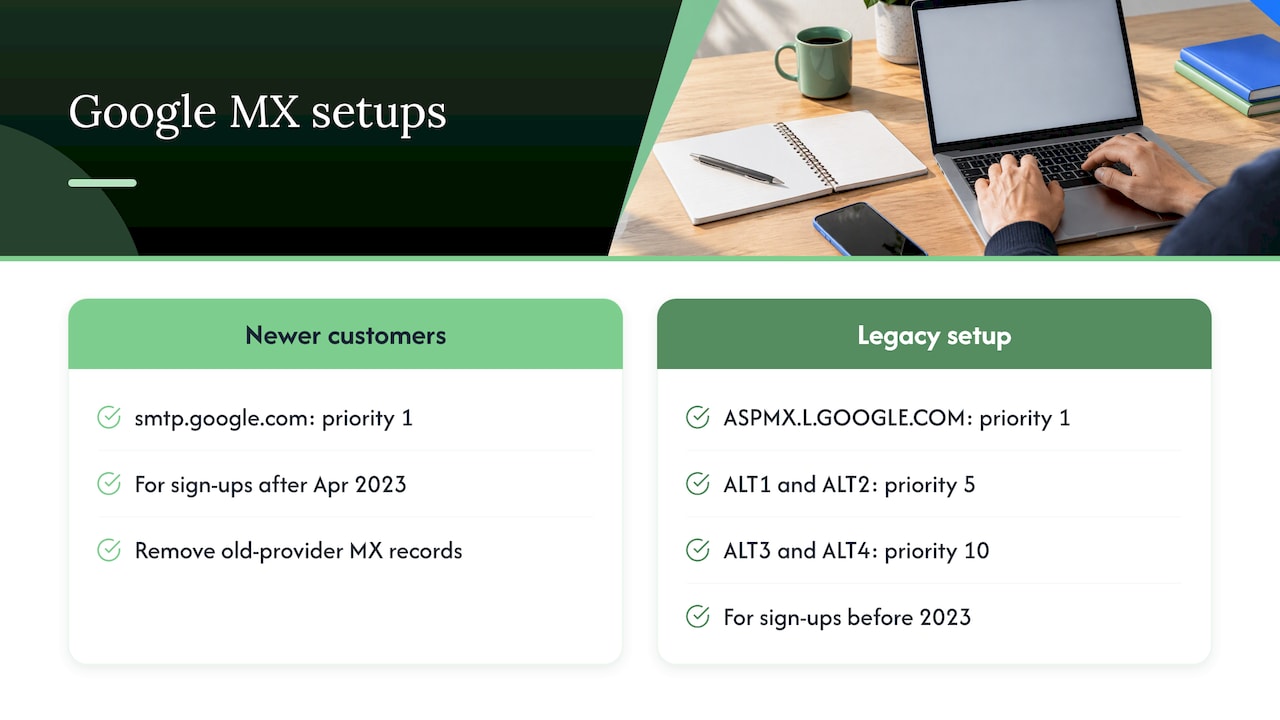
Google’s MX record values page says customers who subscribe to Workspace after April 2023 use a single MX record, smtp.google.com with priority 1. Customers who signed up before 2023 were told to add five MX records (ASPMX.L.GOOGLE.COM at priority 1, ALT1 and ALT2 at priority 5, ALT3 and ALT4 at priority 10). If you are new, use the single record. Remove the old provider’s MX records when you add Google’s, so mail doesn’t split between two systems.
SPF, DKIM and DMARC: why your mail lands in inboxes
These three records prove that mail from your domain is really from you. A technical walkthrough from relaymetry.com (July 2026) lists four records for a Workspace domain: an SPF TXT record (v=spf1 include:_spf.google.com ~all), a DKIM key generated in the Admin console and published at google._domainkey, a DMARC policy at _dmarc, and Google’s MX record.
One trap deserves attention. The same source explains that a domain may publish only one SPF record. A second v=spf1 record causes a PermError. If you also send through a marketing platform or a help desk, add its include: before the ~all in that one record instead of creating another.
This is where the list of services that send as you pays off. Every tool on that list belongs in your single SPF record.
| Record | What it does | Common mistake |
|---|---|---|
| MX | Sends incoming mail to Google | Leaving old provider records in place |
| SPF | Lists who may send as your domain | Publishing two SPF records |
| DKIM | Signs outgoing mail | Forgetting to turn it on after publishing the key |
| DMARC | Tells receivers what to do with failures | Skipping it entirely |
Cutover day: a calm sequence
Block the day, as Google’s switching guidance suggests. Then:
- Confirm the pilot users are happy and all mailboxes are copied once.
- Lower the TTL on your MX record a day or two ahead, if your DNS host lets you. A low TTL makes the change take effect faster and lets you undo it quickly if needed.
- Change the MX record to Google’s and remove the old ones.
- Add or update SPF, publish DKIM, and add DMARC.
- Run a delta import to capture mail that arrived at the old system during the switch.
- Set up Gmail on everyone’s phone and computer, and add signatures.
- Tell your team what changed and where to find old mail.
DNS changes can take some time to spread, so for a few hours some senders may still deliver to the old system. That is normal, and the delta import is what sweeps those messages into the new mailbox. Keep the old subscription active for a few weeks, not days, so nothing gets cut off while stragglers arrive.
How to check that nothing was missed
The best migrations end with a short, boring checklist. Run it the same day and again a week later.
- Send test emails in both directions. From a personal Gmail or Outlook address to your business address, then reply. Do this from at least two different providers.
- Check where mail is going. Open the message header of a test email or check the Admin console’s email logs to confirm it was delivered by Google, not the old host.
- Compare counts for the pilot users. Open a few folders in the old and new mailbox and compare message totals for a date range. Small differences from system messages are normal; big gaps are not.
- Spot-check the important stuff. Search for a recent customer name, an invoice, and a supplier in the new mailbox.
- Test every shared address and alias. Send to info@ and orders@, and confirm the right people receive it.
- Send from your website form and invoicing tool. If those messages vanish or hit spam, your SPF record is likely missing that service.
- Check spam placement. Send to a couple of outside addresses and confirm the message arrives in the inbox.
- Check contacts and calendars on a phone, including shared calendars and recurring events.
If anything fails, the fix is usually in DNS or in user matching, not in the mail itself.
Common errors and what to do
Google publishes a list of Exchange Online import error codes. Four come up most:
| Error | What Google suggests |
|---|---|
| MemoryLimitExceeded | Wait a few hours and run a delta import |
| CapacityExceeded | Run a delta import; contact support if it happens again |
| UserLockTimeout | Run a delta import; contact support if it happens again |
| TransientInternalError | Listed by Google as a temporary error, so retry with a delta import and check the page for current guidance |
The pattern is reassuring: most errors are temporary, and the delta import is the standard fix.
If you also move Google Chat data, note that Google Chat can only migrate the first 500 messages of a thread, and common errors include not finding an email address in your Workspace account or trying to migrate a team without an owner. Most small businesses will not hit these, but if your team uses chat heavily, check before you start.
Our perspective
Most small business owners we talk to put off this move for the same reason: they imagine a week of lost email. In practice the risk sits in a few small things, like a forgotten shared mailbox, a DNS login nobody can find, or a website form that quietly stops delivering.
That is why we treat email as part of the whole digital setup, not a separate job. Your domain, DNS, email, website and analytics all depend on each other. We handle domain, DNS and email setup in-house, with no outsourcing, so the person who plans your cutover is the person who can also fix your contact form if it breaks. You get direct access to the people doing the work, and no lock-in contract just because you asked for help with email.
Our advice: do the pilot, change DNS last, and keep the old system alive for a few weeks. It is not glamorous, but it works.
Cristo
Want us to handle the move?
If you would rather not touch DNS yourself, we set up domains, DNS and email as part of our services. We start with a free trial that includes a full digital audit, so we can see how your email, website and domain fit together before you commit to anything. You can see how our month-to-month plans work on the pricing page.
If your move is part of a bigger project, such as a new site, read our website migration checklist too. Email and website changes often share the same DNS, and doing them in the wrong order can cause trouble.
FAQ
Will I lose my email address when I switch to Google Workspace?
No. Google says you can keep an existing, domain-based address when you choose a Workspace plan and copy your email. Customers see the same address they always used.
Do I need to migrate everything, or can I start fresh?
You can do either. Copying history is useful if you refer back to old quotes and invoices. If you want a clean start, you can set a recent start date or copy only certain folders, which also keeps things quick.
How long does it take?
It depends on mailbox size and how many users you have, so we cannot give one number. A small team with tidy mailboxes is usually straightforward, while large mailboxes take longer to copy. That is why a pilot and a delta import are worth it.
What if my MX records are wrong after the switch?
Check that you have only Google’s record or records, and that the old provider’s are gone. New accounts use one record, smtp.google.com at priority 1, as Google’s MX page explains. If your account predates 2023, the five-record set still applies.
Can I move from Microsoft 365 without downtime?
The aim is yes. Copy the data first, switch MX last, then run a delta import to catch late arrivals. Your people keep using the current system until you change DNS, so there is no gap by design.
Sources
- Migrate to Gmail with Email Migration Tools | Google Workspace
- Get ready to switch to Google Workspace
- Quick Start Guide for medium-size businesses
- Import email with the data migration tool (Google Workspace Admin Help)
- Google Workspace MX record values
- How to set up SPF, DKIM, and DMARC for Google Workspace
- Data import error codes for Exchange Online
- Understand chat data import reports