

A shopper taps your product link on their phone, stares at a blank screen for a few seconds, and leaves. You never see them in your sales report. That is the quiet cost of a slow store, and it is fixable. Shopify speed optimization comes down to four things: lighter images, fewer apps and scripts, a lean theme, and a measured before-and-after check. This guide walks an owner through all four in order, with the traps at each step. If you would rather hand the work to a team, we explain how we handle it near the end.
TL;DR
- Speed is money: Shopify’s own data links every 100 milliseconds of extra load time to a conversion rate about 3.5% lower (April 2026).
- Measure first with Shopify’s Web Performance Dashboard and PageSpeed Insights, so you know what to fix and can prove it worked.
- The usual culprits are oversized images, too many apps, heavy theme animations and extra tracking scripts.
- Fix in this order: apps and scripts, images, theme, then re-test three times and use the median.
- Pick one change at a time, so you can tell which one helped and which one broke something.
Table of Contents
- Why a slow Shopify store costs you sales
- What “fast” means: the three Core Web Vitals
- Step 1: Measure before you touch anything
- Step 2: Find what is slowing the store
- Step 3: Cut apps and third-party scripts first
- Step 4: Fix your images
- Step 5: Choose a faster theme, or trim the one you have
- Step 6: Check checkout and the rest of the buying path
- Step 7: Test the change and watch for regressions
- A simple order of work for a busy owner
- Where owners get stuck
- Getting help from CloudSprout
- A 30-second version you can share
- FAQ
- Sources
Why a slow Shopify store costs you sales
Think of a shop where the door sticks. Some people push harder, most walk on. A slow page works the same way.
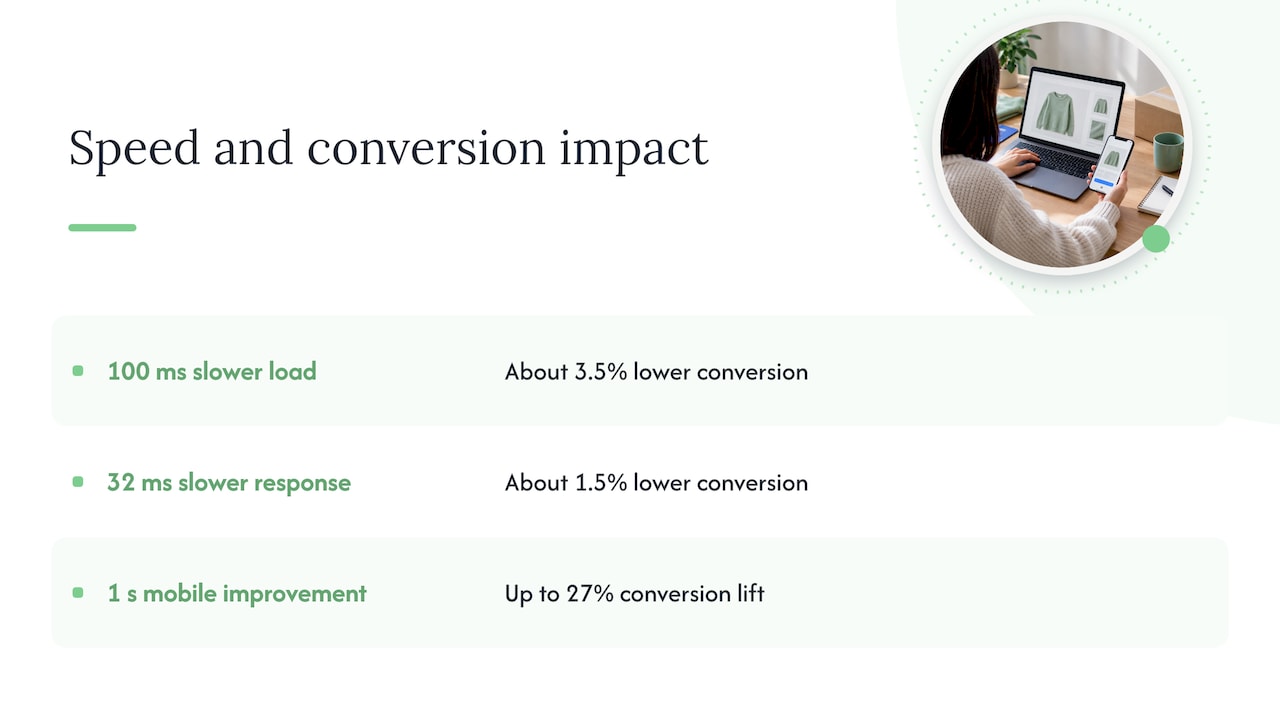
Shopify says improving web performance makes visitors more likely to stay and convert, and helps a store’s chances of ranking higher in search. Its April 2026 analysis found that for every 100 milliseconds slower a store loads, conversion tends to be about 3.5% lower. The same analysis found that for every 32 milliseconds slower a store responds to a tap or click, conversion drops by about 1.5%.
A hundred milliseconds is a tenth of a second. You cannot feel it, yet it shows up in the numbers. Earlier Shopify research also found that a one-second improvement can lift mobile conversions by up to 27%. Treat that as the upper end of what is possible, not a promise.
A quick worked example, with made-up numbers purely to show the arithmetic: a store with 5,000 visits a month and a 2% conversion rate makes 100 orders. If a faster page lifted conversion to 2.1%, that is 105 orders from the same traffic, with no extra ad spend. Speed work pays back because it improves every visit you already paid for.
Speed also feeds search. Google has used Core Web Vitals in its ranking system since May 2021. For an Ontario shop competing for local and national searches, that is one more reason to care.
What “fast” means: the three Core Web Vitals
Core Web Vitals are Google’s three measurements of how a page feels to a real person. Shopify lists them as:
- Largest Contentful Paint (LCP): how long until the biggest thing on screen, usually your main product photo or banner, appears.
- Interaction to Next Paint (INP): how quickly the page reacts when someone taps a button, opens a menu or picks a variant.
- Cumulative Layout Shift (CLS): how much things jump around while loading. It is the reason you tap “Add to cart” and hit something else.
Shopify advises that for a store to count as good, at least 75% of page loads should score well on all three. That 75% matters: the scores come from real visitors on real phones and connections, not from your fast office wifi.
Step 1: Measure before you touch anything
If you skip this step, you will not know whether your changes helped.
There are two kinds of tests, and they answer different questions. According to Shopify’s testing guidance, the Web Performance Dashboard in your admin shows real-visitor data and is the place to set a baseline. Google’s PageSpeed Insights runs a lab test on one page and is best for finding specific problems.
Here is a simple routine:
- Write down your Web Performance Dashboard numbers for LCP, INP and CLS.
- Run PageSpeed Insights on three pages: the home page, your best-selling product page and one collection page. Use the mobile result, since most of your shoppers are on phones.
- Run each test three times and keep the median, which is the middle result. Shopify recommends this because a single run swings with network and server conditions.
- Save the results in a spreadsheet with the date.
Where it goes wrong: owners test only the home page, then fix it and declare victory while product pages stay slow. Product pages are where the money is made.
Another trap is chasing a perfect lab score. A lab score of 100 does not matter if real visitors still wait. Use the dashboard as the judge.
Step 2: Find what is slowing the store
Shopify names the usual factors: themes, installed apps, third-party code added by hand, and the number and size of images and videos. Its developer guidance also flags render-blocking JavaScript and CSS and heavy theme customizations. In plain words, that means code that makes the browser stop and wait before it can show anything.
A practical way to find the heavy parts:
- Open the PageSpeed Insights report and read the “Opportunities” and “Diagnostics” lists. Note which files are biggest and which come from outside your store.
- Make a list of every app you have installed. Next to each, write what it does and when someone last used it.
- Look at the theme settings for animations, sliders, pop-ups and sections that appear on every page.
- Check your theme code and tag manager for scripts that were added by a former developer or a past marketing campaign.
Old tracking pixels from ad campaigns you stopped are a classic leftover. They still load on every page and nobody remembers they exist.
Step 3: Cut apps and third-party scripts first
This is usually the biggest win for the least effort. Shopify suggests auditing third-party tag managers and apps and keeping only the integrations that create enough business value to offset their performance cost.
For each app, ask three questions:
- Does it earn money or save time that you can point to?
- Does it add code to the storefront that customers load? A back-office app, such as one for accounting sync, usually does not. A pop-up, review widget or chat bubble does.
- Could a built-in Shopify feature or a small theme setting do the same job?
When you uninstall an app, check that it left no code behind in the theme. Some apps leave snippets after removal, and those can keep loading and slowing pages. This is a step where mistakes happen, because deleting the wrong line can break a section of the page. Work on a duplicate of your theme, not the live one.
For scripts you decide to keep, Shopify’s developer guidance says to use defer on non-critical scripts, and async only for independent third-party scripts where the order they run in does not matter. In plain terms: defer tells the browser to load the page first and run the script after, which is right for most extras like chat or analytics.
Step 4: Fix your images
Images are the heaviest thing on most product pages, and the easiest to get wrong.
- Size them for the screen. A 4,000-pixel photo straight from a phone is far bigger than any shopper’s screen needs. Resize before upload.
- Compress. Shopify’s guidance for Canadian merchants is to save web images at 72 dpi rather than 300 and favour JPG over PNG for photos.
- Treat the top image differently. The main image people see first is usually your LCP element. Shopify’s developers say to mark it with fetchpriority=“high” and make sure it is not lazy-loaded. Lazy loading, which delays images until needed, is great for photos lower on the page and bad for the first one.
- Mind video. Autoplaying background video on the home page is among the heaviest choices you can make. A still image with a play button is much lighter.
Where it goes wrong: applying lazy loading to everything, including the hero image, makes the most important picture arrive last. Another is uploading compressed images that look blurry on larger screens. Check a few on a laptop and a phone before you move on.
Step 5: Choose a faster theme, or trim the one you have
People who search for a faster Shopify theme are often tempted to rebuy a theme. Usually you do not need to. Shopify says to look for an up-to-date theme, and notes that its Horizon family and Online Store 2.0 themes are free and optimized. It also says that animations and too many page sections hurt performance, so a minimalist set-up wins.
What to do with your current theme:
- Update it to the latest version.
- Turn off scroll animations, hover effects and auto-rotating sliders. They add code and delay response.
- Cut home page sections to what a shopper needs: a clear offer, best sellers, one trust message and a way to contact you.
- Avoid “mega” menus that load hundreds of links.
Shopify’s developers also advise loading essential content with HTML and Liquid, not client-side JavaScript, so that key content appears quickly and search engines can read it. Liquid is Shopify’s own template language. If a developer proposes building your product grid in JavaScript, ask why.
A store that looks clean often feels more premium too. Fewer moving parts is both a speed fix and a design improvement.
Step 6: Check checkout and the rest of the buying path
A fast product page does not help if the path to payment drags. Look at every step between “Add to cart” and “Thank you”: the cart drawer, shipping calculator, payment options and confirmation page. Each extra script or form field is a reason to leave. If you are weighing alternative payment methods, these crypto checkout fixes for fees and abandonment show the kind of checkout friction worth reviewing, whichever payment options you offer.
For a wider look at why visitors leave without buying, our practical fix list for stores that are not converting goes beyond speed.
Step 7: Test the change and watch for regressions
After each change, repeat the routine from Step 1. Shopify’s guidance is to run Lighthouse, the engine behind PageSpeed Insights, on a theme preview at least three times and take the median, then use the Web Performance Dashboard to confirm that real visitors see the improvement and to catch regressions.
A regression is when something you fixed gets slow again. The usual cause is a new app, a new marketing pixel or a big banner image uploaded for a sale. Real-visitor data takes time to update, so give it a few weeks before you judge.
Developers can go further. Shopify CLI lets them preview themes locally and trace performance in Chrome DevTools before anything touches your live store. Shopify’s performance team also notes that Safari now exposes LCP and INP, which gives a fuller view of how iPhone shoppers experience a store. That matters in Canada, where many shoppers are on iPhones.
A simple order of work for a busy owner
| Priority | Fix | Effort | Why first |
|---|---|---|---|
| 1 | Remove unused apps and old pixels | Low | Cuts code on every page |
| 2 | Resize and compress images, fix the hero image | Low to medium | Images are usually the heaviest files |
| 3 | Turn off animations and extra sections | Low | Reduces theme overhead |
| 4 | Defer non-critical scripts | Medium | Needs care so nothing breaks |
| 5 | Update or change theme | Medium to high | Only if the first four are not enough |
If the heavy part is server response rather than the page itself, our guide on fixing time to first byte first explains that side. Our prioritized fixes for small business website speed covers the broader checklist.
Where owners get stuck
Most owners can do Steps 1 to 4 over a weekend. The trouble starts when a fix touches theme code: moving scripts, editing Liquid, or deciding which app is safe to remove. One wrong edit can break your cart button, and you may not notice until orders dip.
Another problem is time. You run the business. Testing three times on three pages after every change, tracking results in a spreadsheet and re-checking each month is real work that tends to fall off the list.
That is the point where a team that does this daily pays for itself.
What we think about Shopify speed
We see a slow store as a business problem first and a technical one second. An owner does not care about LCP. They care that people click an ad and do not buy.
That is why we do the work in-house, with no outsourcing, so the person who looks at your speed report is on the same team as the person who edits your site. You get direct access to the people doing the work, not a account manager passing notes.
Our approach is to measure first, remove what does not earn its place, and keep the store simple enough to stay fast. We also believe you should not be locked in: our pricing is transparent and month-to-month, so you stay because it works.
Speed is not a one-off. Every new app and every sale banner can undo it, so it works best as a steady habit, with someone watching.
Cristo
Getting help from CloudSprout
CloudSprout is an Ontario-based digital agency serving owner-operated businesses across Canada. We build custom websites and handle SEO, content, automation and more under one roof. Every engagement starts with a free trial that includes a full digital audit, so you see where your site stands before you commit to anything.
Our monthly plans run month-to-month with no lock-in contract: Sprout is $300 CAD per month, Grow is $600 CAD per month and Scale is $1,200 CAD per month. One-off setup fees range from $500 to $1,500 CAD for Sprout, $1,500 to $3,500 CAD for Grow and $3,500 to $7,500 CAD for Scale. See the details on our pricing page, or look at our website development services and Shopify store setup for Canadian businesses.
If you want a second pair of eyes on your store’s speed, start with the free audit at cloudsprout.ca.
A 30-second version you can share
If you want to explain this to a staff member, here is the short script. Open your store on your phone and count how long the first photo takes to appear. Then open your app list and ask which ones a shopper actually sees. Most stores carry apps nobody remembers installing, and each one adds code to every page. Remove two, resize your top image, and re-test. That one hour often does more than a new theme.
FAQ
How fast should my Shopify store be?
Google and Shopify judge speed by the three Core Web Vitals, not a single number of seconds. Shopify advises that at least 75% of page loads should score well on all three. Check the Web Performance Dashboard in your admin to see where you stand.
Will a faster theme fix my speed on its own?
A lean, up-to-date theme helps, and Shopify describes its Horizon and Online Store 2.0 themes as free and optimized. Speed also depends on your apps, images and added scripts, so a new theme on top of the same heavy apps rarely solves it. Do the app and image clean-up first.
How many apps is too many?
There is no magic number. Shopify’s advice is to keep only the apps and integrations whose business value outweighs their performance cost. Remove any that you cannot link to sales or saved time, and check that no leftover code stays behind.
How often should I re-check my store speed?
Check after every new app, theme update or major banner change, and look at the dashboard monthly. Real-visitor data lags, so compare weeks, not days. When you test in PageSpeed Insights, run each page three times and use the median.
Sources
- Shopify Help Center: Improving your online store’s web performance
- Shopify Help Center: Overview of web performance
- Shopify.dev: Performance best practices for Shopify themes
- Shopify.dev: Testing for performance
- Shopify: Store speed and conversion, what the data shows (2026)
- Shopify: Why site speed is so important for CRO, SEO and loyalty
- Shopify Canada: How to improve your Core Web Vitals score
- Performance @ Shopify: Web performance tools for 2026
- CryptoPayr Blog: Crypto checkout for merchants