

Picture a quote, a contract or a purchase order that sits for six days because it landed in the wrong inbox. Nobody was lazy. Nobody knew it was their turn. A document approval workflow fixes that: it is a written route a document follows from draft to final, with a named person at each stop, a deadline and a record of every decision. For a small Ontario business, it is the difference between chasing people and having the paperwork come back on its own.
This guide explains the idea in plain words, then walks you through setting up a digital approval process for a team of 1 to 50 people. If you would rather have it built and running without learning new software, we do that at CloudSprout, and you can see how in the promo section below.
TL;DR
- A document approval workflow is a fixed route: who reviews, who approves, in what order, by when, and what happens after each decision.
- Most stalls come from unclear ownership, too many reviewers and several versions floating around, not from slow people.
- Start on paper: list your documents, name one approver for each, set a deadline and decide what “rejected” and “changes needed” do.
- Then automate the route so reminders, locking and record-keeping happen without you.
- Electronic approval and signing is accepted in Ontario for most business documents, with a short list of exceptions.
Table of Contents
- What a document approval workflow actually is
- Why approvals stall (and it is rarely a people problem)
- How to set up a document approval workflow, step by step
- Is an electronic approval legally acceptable in Ontario?
- Manual or automated: which does your business need?
- Three small-business examples
- How to keep it working after launch
- What we think about approval workflows
- Get your approvals running without the setup headache
- FAQ
- Sources
What a document approval workflow actually is
Think of it as a relay race for paperwork. A document is created, someone checks it, someone with authority says yes or no, and it is filed. The workflow is the set of rules for that race: who runs each leg, how long they have, and where the baton goes if someone drops it.
The word “workflow” sounds technical, but you already have one. If your bookkeeper emails you an invoice and you reply “ok, pay it,” that is an approval workflow. It just lives in an inbox, with no deadline, no reminder and no tidy record.
A digital approval process moves those same steps into a tool that does the routing for you. The document stays attached to its comments, tasks and decisions, so you do not need to hunt through email threads to learn who said what.
Review, approval and signature are three different jobs
Small teams often blur these together, and that is where confusion starts:
- Review means checking the document and suggesting edits. A reviewer improves it.
- Approval means deciding whether it can go ahead. An approver owns the decision.
- Signature means formally agreeing to the final version, often with a client or supplier.
One person can do all three in a very small business. The point is that they are separate steps, so you can decide who does which. A bookkeeper might review a supplier contract, you might approve it, and the supplier signs it.
Why approvals stall (and it is rarely a people problem)
If approvals in your business drag, the cause is usually the setup. The common failure patterns are easy to recognize:
- The request sits unnoticed in an inbox. There is no reminder, so it depends on someone remembering.
- Nobody is sure who decides. Three people assume one of the others will sign off.
- Too many reviewers. Everyone gets everything, so everyone waits for everyone else.
- Version drift. Two people edit different copies of “final_v3” and “final_v3_REAL.”
- Comments scattered across emails, texts and printouts. The author has to stitch them back together.
- The approval is stored apart from the file. Months later, no one can prove who said yes.
The fix is the same each time: one controlled copy of the document, one named decision-maker, a deadline and a record that stays with the file.
How to set up a document approval workflow, step by step
You can do the planning in an afternoon with a pen and paper. The tool comes second. Where we help, we say so.
Step 1: List the documents that need a yes
Write down every document that currently needs someone’s permission before it moves on. For a typical Ontario small business, that might be:
- Quotes and proposals before they go to customers
- Purchase orders and supplier invoices
- Customer contracts and service agreements
- Employee documents such as time-off requests or expense claims
- Marketing material, such as a flyer or a website page, before it goes live
Do not try to automate everything. Pick the two or three that cause the most chasing. A good test is how often you hear yourself say, “Did you get a chance to look at that?”
Where it goes wrong: listing every document in the company on day one. The workflow becomes a project nobody finishes.
Step 2: Decide what triggers an approval
Not every document needs the owner’s eyes. Set a rule based on size, type or risk. For example: purchase orders under $500 are approved by the shop supervisor, anything above goes to you. Contracts always go to you. A standard quote using your price list needs no approval, but a discounted one does.
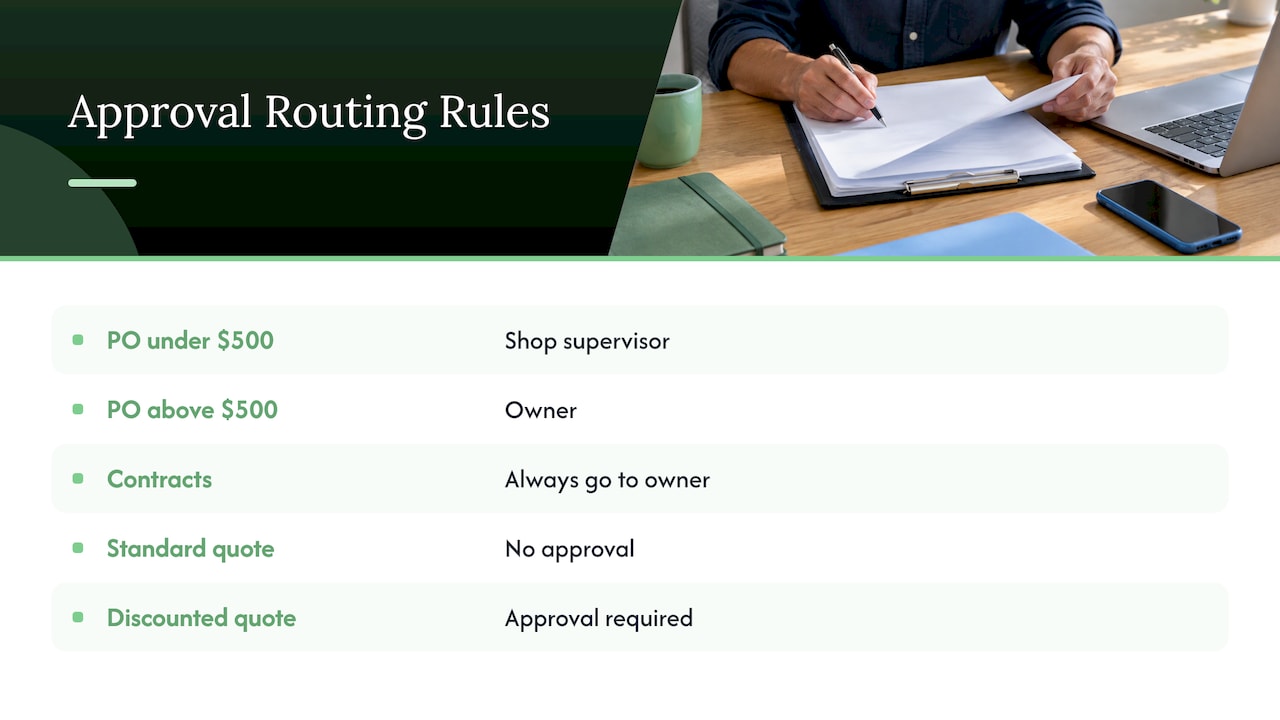
This is called risk-based routing: documents that matter more get more scrutiny, and routine ones move fast. It is the single best cure for “too many reviewers.”
Where it goes wrong: sending everything to the owner “just in case.” You become the bottleneck, and approvals start to feel like rubber stamps.
Step 3: Name one approver per document type
Each document type gets one person who owns the decision. You can add reviewers who comment first, but only one person holds the final yes. If that person is away, name a backup now, not when the quote is already late.
Where it goes wrong: “the team approves.” A group is not a decision-maker.
Step 4: Choose serial or parallel routing
There are two basic shapes:
- Serial: people act one after another. The estimator checks the quote, then the manager approves it. Use this when each person needs the previous person’s work.
- Parallel: several people receive the document at the same time. Use this when reviews are independent, such as finance and operations both checking a contract.
Parallel is faster. Serial is safer when order matters. Many real workflows mix the two.
Step 5: Define what each decision does
This is the step most small teams skip, and it is where workflows quietly break. For each approver, write down three outcomes and what happens next:
| Decision | What should happen next |
|---|---|
| Approve | Document moves to the next stage, is signed, or is filed |
| Request changes | Document goes back to the author with comments, then returns to the same approver |
| Reject | Document stops, the author is told why, and the status is marked clearly |
A real example of how a digital tool handles this: in Toronto Metropolitan University’s guide to Google Approvals, a requester adds approvers and an optional due date, all approvers must approve, and a single rejection rejects the file. Files lock once approvals are complete, and reminder emails go out when a due date is set. Locking the file after approval is a small detail that prevents version drift, because nobody can quietly edit the document after it was approved.
Step 6: Set deadlines and reminders
Every approval gets a due date. Two business days works for most routine items; a day for urgent quotes. Add an automatic reminder before the deadline, and decide what happens when it is missed: does it go to a backup approver, or to you? Reminders are the part people most want to stop doing by hand.
Step 7: Keep the record with the document
When the approval is finished, the file should show who approved, when and with what comments. That record protects you if a customer disputes a quote or a supplier disputes an order. Keep it attached to the document, not in a separate email.
Also decide who can see what. Payroll or client files should be visible only to the people who need them to review or approve.
Step 8: Test with one real document, then add more
Run one live document type through the route for two weeks. Note where it stuck. Adjust. Then add the next type. At CloudSprout, our Business Automation service covers this kind of routing, and we do the work in-house, so the person who designs your approval route is the person you talk to.
Is an electronic approval legally acceptable in Ontario?
For most business documents, yes. Ontario’s Electronic Commerce Act, 2000 says that a legal requirement for a document to be signed is satisfied by an electronic signature, subject to the exceptions and conditions the Act sets out. Across Canada, provincial electronic commerce laws take a similar approach, but each province has its own rules and exceptions.
The exceptions matter if you handle certain documents. Wills, some trusts, powers of attorney and certain real-estate or land documents are commonly handled differently, and some government forms have their own requirements. If your approval route touches any of those, check with your lawyer before you move it online. For everyday quotes, purchase orders, service agreements and internal sign-offs, an electronic route is normally fine.
Manual or automated: which does your business need?
A manual process, where someone emails a PDF and waits, works when you approve fewer than a handful of documents a week and one person sees them all. It starts to hurt when:
- You have more than one approver
- The same document type repeats weekly
- You have missed a deadline because a request was buried
- You cannot easily say who approved something last quarter
Then automation pays off. Here is what to look for in an easy-to-use tool:
- Roles. The ability to mark people as approvers, reviewers or viewers.
- Order and timing. Serial or parallel routing, due dates and automatic reminders.
- Clear outcomes. Approve, reject and request-changes buttons that actually do something.
- Locked final copy. The file cannot be edited once approved.
- A visible record. Who, when and why, stored with the file.
- Fits your existing tools. It should work with the email, accounting and customer records you already use.
If your approvals are more physical than paper, such as a technician submitting photo proof of a finished job for a manager to approve, a photo-proof approval workflow software built for frontline teams is a different kind of tool from a document one, and it helps to know the difference before you shop.
Three small-business examples
A plumbing company approving quotes. Before: the estimator emails a quote to the owner, who is on a job site and replies two days later. After: quotes under a set amount go straight out, larger ones go to the owner on his phone with a one-day deadline and a reminder. The customer gets an answer the same day.
A restaurant approving supplier orders. Before: the chef texts an order, the manager forgets to confirm, and the delivery is short. After: orders go to the manager as a request, with a record of what was approved. The same idea applies to purchase order approvals without email chasing.
A professional services firm approving proposals. Before: the proposal lives in three versions across two inboxes. After: one version, one partner approving, then it goes out. For more on this, see how proposal automation for small teams saves hours of back-and-forth.
How to keep it working after launch
A workflow is not set and forget. Once a month, look at three things:
- Which approvals ran late? If it is always the same person, they have too much on their plate or the rule sends them too much.
- Which requests got sent back? If many come back for the same reason, add that point to a checklist for the author.
- Which rules nobody uses? Delete them. A short workflow is a workflow people follow.
Simple follow-ups also help outside the company. If customers are slow to approve a quote, automated reminders can nudge them politely. Our follow-up pack is built around reminders sent for you, so the chasing does not land on your desk.
What we think about approval workflows
Most owners we talk to do not say “I need a document approval workflow.” They say, “I am tired of chasing people,” or “I never know where that quote is.” Those are the same problem.
Our view is simple: write the route down first, then build it with the smallest tool that does the job. A workflow with five clear rules beats one with fifty. Every document gets one owner, one deadline and one record.
We also think you should not have to become a software expert to run your business. That is why we do the work in-house, with no outsourcing, and why you speak directly to the team doing it. Our pricing is month-to-month with no lock-in contracts, so if the route does not suit you, you are not stuck.
If approvals are eating your week, automating them is one of the most practical places to start.
Cristo
Get your approvals running without the setup headache
CloudSprout is an Ontario-based digital agency for owner-operated businesses. Our Business Automation service is where approval routes live, alongside CRM and AI employees, and everything is delivered in-house. Our monthly plans start with Sprout at $300 CAD per month, with a one-off Sprout setup fee of $500 to $1,500 CAD, and Grow and Scale plans are on the pricing page. You start with a free trial that includes a full digital audit.
Want to see what else we can take off your plate? Browse our services, or start from cloudsprout.ca and tell us which documents you are chasing right now.
FAQ
What is the difference between an approval process and an approval workflow?
The process is the idea: who needs to say yes before something moves. The workflow is the specific route that carries it out, including the order, deadlines and what happens after each decision. A written workflow is what lets you automate the process.
How many approvers should a document have?
One person should own the final decision. You can add reviewers who comment first, but keep them to people with a direct stake in the document. Adding more reviewers than needed is a common reason approvals slow down.
Can I use a digital approval process if I have only five employees?
Yes. Small teams often benefit most, because one missed approval can hold up a job or a customer. Start with the one or two document types you chase most, and keep the rules short.
Do I still need a signature after approval?
Sometimes. Approval is your internal yes, while a signature is the formal agreement with the other party, such as a customer on a contract. In Ontario, most business documents can be signed electronically under the Electronic Commerce Act, 2000, with some exceptions, so check with your lawyer for wills, powers of attorney or land documents.
Sources
- Electronic Commerce Act, 2000, SO 2000, c 17 (CanLII)
- Google Approvals, Toronto Metropolitan University