

You open your laptop at 7:30 a.m. and 63 unread emails are waiting. One is a customer ready to book a $4,000 job. One is a supplier invoice due today. The other 61 are noise. AI email triage is software that reads each incoming message, works out what it is and how urgent it is, and then labels it, ranks it or sends it to the right person. Done well, the booking and the invoice are at the top of your screen before you pour coffee.
This guide explains how it works in plain words, what a small Ontario business can set up without a big IT team, where it goes wrong, and what Canadian privacy rules mean for you.
TL;DR
- AI email triage reads the meaning of a message, not just keywords, then sets a category, a priority and an owner.
- Start with free rules in Outlook or Gmail for the predictable mail, and add AI only for the messy, unpredictable emails.
- Let AI sort and draft. Keep a person approving anything that goes to a customer, especially at first.
- In Canada, email full of customer details is personal information, so privacy law (PIPEDA) still applies when AI reads it.
- A good first goal is small: one shared inbox, four categories, one human review queue.
Table of Contents
- What is AI email triage, in plain words?
- How does AI sort and route emails?
- Do you need AI, or are inbox rules enough?
- How does it fit into the email you already use?
- How to set it up in five steps
- What kind of email is safe to hand to AI?
- Where AI email triage goes wrong
- Privacy in Canada: what to know before AI reads your email
- Our perspective
- Want us to set it up for you?
- A 60-second way to test it today
- FAQ
- Sources
What is AI email triage, in plain words?
Triage is a hospital word. A nurse looks at who is waiting and decides who needs help first. Email triage does the same for your inbox. Traditional triage, done by a person, gives every message one of five outcomes: do it now, hand it off, do it later, file it, or delete it. The point is that no message sits there with no next step.
AI email triage does that sorting for you. The software reads the subject, the body and sometimes the attachment, then decides things like:
- Category: sales enquiry, support request, invoice, supplier, spam, internal.
- Priority: needs an answer today, this week, or never.
- Owner: you, your office manager, your estimator, your bookkeeper.
- Next step: a suggested reply, a calendar link, a task in your CRM.
The difference from the old way is meaning. A fixed rule can only match words. If an email contains “urgent”, the rule fires, even when it is a newsletter selling you something. An AI model reads the whole message and can tell a customer whose furnace has stopped from a marketing blast that merely shouts. That is the whole idea, and it is also why the technology is useful for a business where one missed email can be a lost job.
How does AI sort and route emails?
Most setups, whatever the brand of software, follow the same four steps.
- A new email arrives and triggers the workflow. This can be your main inbox, a shared mailbox like info@ or a contact form that lands in email.
- The AI gets some context. Good systems also look at who the sender is, whether they are already a customer and what was said earlier in the thread.
- The AI returns a structured answer. Not a paragraph, but fields: topic, urgency, maybe a suggested reply.
- Plain, predictable rules take over. If topic is “quote request” and urgency is high, notify the owner. If it is a routine question, offer a drafted answer for approval. If it is a receipt, file it.
Notice the split. The AI does the reading. Ordinary rules do the acting. Keeping those two jobs apart is what makes the system safe, because the AI is never trusted to decide everything on its own.
A worked example: an Ontario HVAC company
Picture a six-person heating and cooling company in Barrie with one shared inbox. In a typical week it receives:
| Email type | What AI should do | Who sees it |
|---|---|---|
| “No heat, kids at home, can someone come today?” | Mark urgent, alert by text | Dispatcher, immediately |
| “Can I get a quote for a new AC?” | Tag as sales, draft a reply with booking link | Owner, for approval |
| Supplier invoice with PDF | Tag as finance, pull out amount and due date | Bookkeeper |
| Warranty question on a unit bought in 2023 | Tag as support, look up the customer | Office manager |
| “Boost your Google ranking!” | Tag as junk, archive | Nobody |
The dispatcher no longer scrolls to find the emergency. The owner sees only the quotes. That is the entire promise.
Do you need AI, or are inbox rules enough?
Honest answer: often rules do most of the work, and you should use them first. Both big email platforms already include them.
- Outlook lets you create rules that move, flag or change the importance of incoming messages automatically.
- Gmail has filters and labels that sort incoming mail, archive newsletters and flag VIP emails.
If your mail is predictable (always from the same suppliers, always the same subject lines), a rule is faster, cheaper and easier to understand. AI earns its place where mail is unpredictable: customers who describe a problem in their own words, emails with attachments, long threads where the real request is buried in the third paragraph, and messages that need a category your rules never anticipated.
A simple test: write down the last 20 emails you wasted time on. If you could have sorted 15 of them by sender or subject, start with rules. If most were free-form human messages, AI is worth it.
How does it fit into the email you already use?
The best news for a busy owner is that you rarely need to change your email. Triage works as a layer on top of what you have, in one of three ways.
1. Built-in assistants. Microsoft documents that Copilot in Outlook can summarize, draft and prioritize email. If your team already pays for Microsoft 365 and a Copilot licence, this is the lowest-effort place to begin. It helps one person manage their own inbox, though, not route work between several people.
2. A workflow in the middle. An automation platform watches your inbox, sends each message to an AI model, then acts on the result: apply a label, create a task, notify a person, update your customer list. This is the approach that handles shared mailboxes and hand-offs between staff.
3. A custom AI employee. For businesses that want the sorting, drafting and follow-up handled as one job, a custom-built assistant can be trained on your services, your tone and your policies. It is more setup, and it matches how your business actually works.
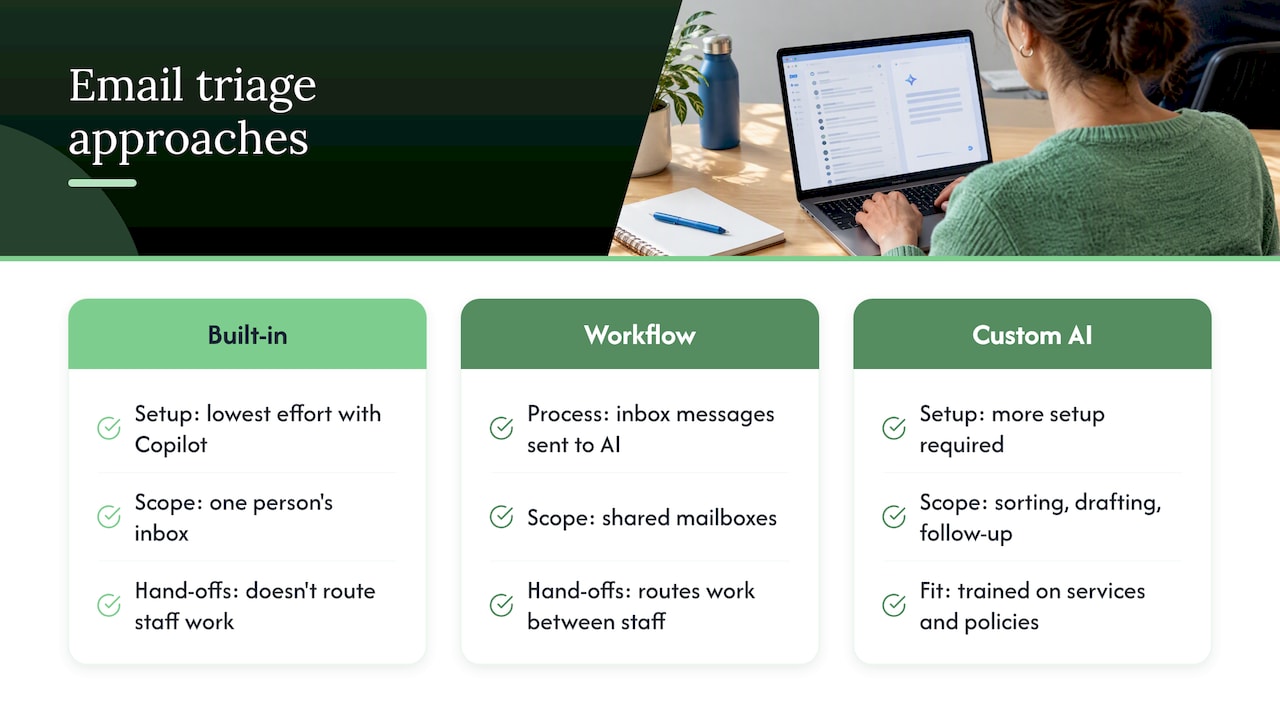
Your inbox stays where it is. Your team still replies from the same address. What changes is the order in which things reach them, and how much of the typing is already done.
How to set it up in five steps
You do not need a giant project. Aim for something working within two to four weeks.
- List your categories. Four to six is plenty: new enquiry, existing customer, billing, supplier, junk. Too many categories make the AI less reliable and your team less likely to trust it.
- Define “urgent” in writing. For a plumber it is water damage. For an accountant it is a CRA letter. Write three or four examples. The AI needs your definition, not a generic one.
- Pick an owner for each category. A sorted email with no person attached is still a pile.
- Build the route. Trigger on new mail, classify, branch. For routine questions, draft a reply. For anything touching money, contracts or complaints, send it to a human first.
- Run it quietly for two weeks. Let the AI label mail but take no action. Compare its labels with what you would have chosen. Fix the categories, then switch the actions on.
That last step is the one most people skip, and it is the cheapest insurance you can buy.
Connecting triage to your leads
For many owners, the email that matters most is a new customer enquiry. Once triage tags a message as a sales enquiry, the next question is who gets it and how fast. We cover that in our guide to automating lead routing in two to four weeks, and in how to score and book leads faster with AI. The same logic applies to outbound work: once messages are categorized, each one needs a clear owner and next action, which is how an AI-powered sales outreach platform approaches buyer conversations too.
What kind of email is safe to hand to AI?
Not all mail carries the same risk. A useful way to think about it is in three lanes.
| Lane | Examples | What AI may do |
|---|---|---|
| Green | Newsletters, receipts, notifications, spam | Label, file, archive automatically |
| Amber | Quote requests, scheduling, routine questions | Label, draft a reply, wait for human approval |
| Red | Complaints, legal notices, refunds, anything emotional | Flag to a person only, no draft sent |
You can also loosen the amber lane over time. After a month of seeing the AI’s drafts approved with no edits, a few repeat questions (hours, service areas, how to book) can be answered automatically. Even then, only reply automatically to senders you can trust. Mail that fails sender authentication should not trigger an automatic reply, because a spoofed email can make your system say things you never meant to say.
Where AI email triage goes wrong
Being honest about the failure modes is what makes the system work.
- Silent mistakes. The worst error is the quiet one: a real customer filed as junk and nobody ever sees it. The fix is a confidence threshold. When the AI is unsure, the message goes to a human queue instead of a guess. Check that queue daily at first.
- Context it cannot see. The AI does not know that a customer is your biggest account unless you tell it. Feed it a VIP list.
- Tone. Drafts can sound stiff or oddly cheerful. Give it three examples of replies you are proud of.
- Over-trusting drafts. An AI can confidently quote a price or a policy you do not have. Keep approvals on for anything involving money or promises.
A good design keeps three things separate: the AI reading and labelling, the rules deciding what happens, and a person approving the middle-risk cases. If any one of those fails, the others still catch the problem.
Privacy in Canada: what to know before AI reads your email
Your inbox is full of names, phone numbers, addresses, job details and sometimes health or financial information. Under Canadian law that is personal information, and using AI does not change your responsibility for it.
The federal privacy law, PIPEDA, applies to private-sector organizations that collect, use or disclose personal information in the course of commercial activities, except in provinces with substantially similar laws (Quebec, British Columbia and Alberta have their own). Ontario businesses generally fall under PIPEDA for this purpose.
The Office of the Privacy Commissioner of Canada has published principles for responsible and trustworthy generative AI. In practice, for an owner, they point toward these habits:
- Know your legal basis for processing customer information, and write it down.
- Where you rely on consent, make it meaningful, not buried.
- Process only what the purpose needs. Do not feed your whole mailbox history to a tool just because you can.
- Use anonymized or de-identified data where possible.
- Set retention schedules and safeguards, and keep someone accountable.
The federal government also stresses transparency and accountability around automated decision-making and cross-border data flows. That second part matters for email: ask any AI tool where your messages are processed and stored, and whether they are used to train models. If you handle health, legal or financial files, get advice from a privacy lawyer before you switch anything on.
We go deeper in our guides on AI data privacy duties for small Canadian businesses and a copy-ready privacy policy and checklist. If you are comparing tools, our marketing automation checklist lists eight questions to ask before you buy.
Our perspective
Most owners we talk to do not have an email problem. They have a “the right message reached the right person too late” problem. A missed enquiry is a lost job, and it rarely feels like a loss, because you never see it.
That is why we treat email triage as part of running the business, not as a gadget. We build it alongside your CRM, your website forms and your follow-up, so a message tagged “new customer” becomes a task with a name on it and a clock behind it.
We keep a person in the loop on anything that speaks for your brand, and we work month to month with no lock-in, so you can judge it by results. Our team does the work in-house, and you talk to the people building it.
Cristo
Want us to set it up for you?
If you would rather not wire this together yourself, this is the kind of job we do. Our Business Automation and AI Employees services cover email sorting, routing to the right person, drafted replies and the hand-off into your CRM, all built in-house. We start with a free trial that includes a full digital audit, so you see where your leads and messages are leaking before you commit.
Our monthly plans start with Sprout at $300 per month, Grow is $600 per month and Scale is $1,200 per month, each with a one-off setup fee (Sprout $500 to $1,500, Grow $1,500 to $3,500, Scale $3,500 to $7,500). See the full pricing page or browse all our services. Automation and AI Employee projects have no published price, so tell us what your inbox looks like and we will scope it.
A 60-second way to test it today
Before you buy anything, try this. Take your last 20 emails and tag each one with a single word: act, delegate, defer, file or delete. Count how many you tagged “delete” or “file”. Most owners are surprised: it is often more than half. That number is the time an assistant could give back to you every single day. It is also the clearest picture of what your triage rules should be.
FAQ
Can Copilot triage emails?
In part. Microsoft documents that Copilot in Outlook can summarize, draft and help prioritize messages, which helps one person with their own inbox. It does not replace a workflow that routes mail between several staff or into your CRM. Availability depends on your Microsoft 365 licence.
What does AI triage mean?
It means software reads each incoming message and decides its category, priority and who should handle it. It looks at meaning rather than fixed keywords. A person should still review uncertain or high-stakes messages.
What is the best way to triage emails?
Use a simple sequence: act, delegate, defer, file or delete, so every message gets a next step. Handle predictable mail with inbox rules, and use AI for free-form messages. Check your inbox at set times rather than all day.
Is there an AI for emails?
Yes, several kinds: assistants built into your email app, workflow tools that sit in the middle, and custom AI employees trained on your business. Which fits depends on whether you manage one inbox or a team. For customer data, check where messages are stored and processed before you start.
Sources
- Manage email messages by using rules in Outlook
- Tips to optimize your Gmail inbox, Google Workspace Learning Center
- Frequently asked questions about Copilot in Outlook
- General Data Protection Regulation, Innovation, Science and Economic Development Canada
- Principles for responsible, trustworthy and privacy-protective generative AI, Office of the Privacy Commissioner of Canada
- Strengthening Privacy for the Digital Age, Innovation, Science and Economic Development Canada