

Picture a Tuesday. Your site lead texts you a photo of a lumber quote, your bookkeeper asks who approved last week’s order, and a supplier emails to say the invoice doesn’t match what they shipped. Nobody did anything wrong. The paperwork just lives in six places.
Purchase order automation fixes that. It uses software to handle the repetitive parts of buying: the request, the approval, the numbered order sent to the supplier, the tracking of what arrives and the check of the invoice against both. IBM describes it as replacing paper forms, emails and approval chasing with digital tools. For a small business, the win is simple: fewer things typed twice, fewer “who signed off on this?” moments, and a clear trail when your accountant asks questions.
TL;DR
- Purchase order automation turns a request into an approved, numbered order and tracks it through delivery and invoice matching, with no email chains.
- Start with the rule-based steps: request forms, approval routing and order creation. Leave odd exceptions to a person.
- Map how buying works today before you pick any tool. Who asks, who approves, and at what dollar amount?
- Pilot with one supplier or one type of purchase, then widen it.
- If your accounting software already has purchase orders, connecting it to your other systems may be all you need.
Table of Contents
- What does it mean to automate a purchase order?
- Why does buying by email and text cost so much time?
- What can you automate, and what should a person still decide?
- How do I automate purchase orders step by step?
- What should I look for in purchase order software?
- How do I roll it out without disrupting the business?
- What automation can’t fix
- Perspective: why we build this around your real workflow
- What does it cost to get started with us?
- A quick example: a small Ontario contractor
- FAQ
- Sources
What does it mean to automate a purchase order?
A purchase order (PO) is your written promise to a supplier: this is what we want, at this price, and we’ll pay for it. Automating it means the system does the routine work around that promise, so people only step in when a decision is needed.
Sage Canada explains that purchase order software manages procurement from requisition to payment, routes approval requests to the right people, generates and tracks orders, monitors deliveries and cross-checks invoices against company policy. Connected to accounts payable, it also feeds payment and reporting.
In plain terms, automation can cover:
- The request. A short digital form replaces a text message or a sticky note.
- The approval. The form goes to the right person based on rules you set, such as the amount or the department.
- The order. Once approved, the PO is created with a number and sent to the supplier.
- The tracking. You see what’s ordered, what’s late and what has arrived.
- The matching. The invoice is checked against the PO and the delivery before anyone pays it.
That last step is called three-way matching: the order, the receipt and the invoice should agree. If they don’t, the system flags it instead of letting it slip through.
Why does buying by email and text cost so much time?
The cost is rarely one big mistake. It’s the small friction repeated every week. Someone retypes a quote into a spreadsheet. An approver is on a job site and can’t answer. A supplier confirms by email that gets buried. The invoice arrives and nobody remembers whether the price was agreed.
IBM notes that a manual PO process that typically takes two to three days can be completed in a few hours with automation. Your own numbers will differ, since they depend on how many approvals sit in the chain, but the direction is the same: fewer handoffs, faster answers.
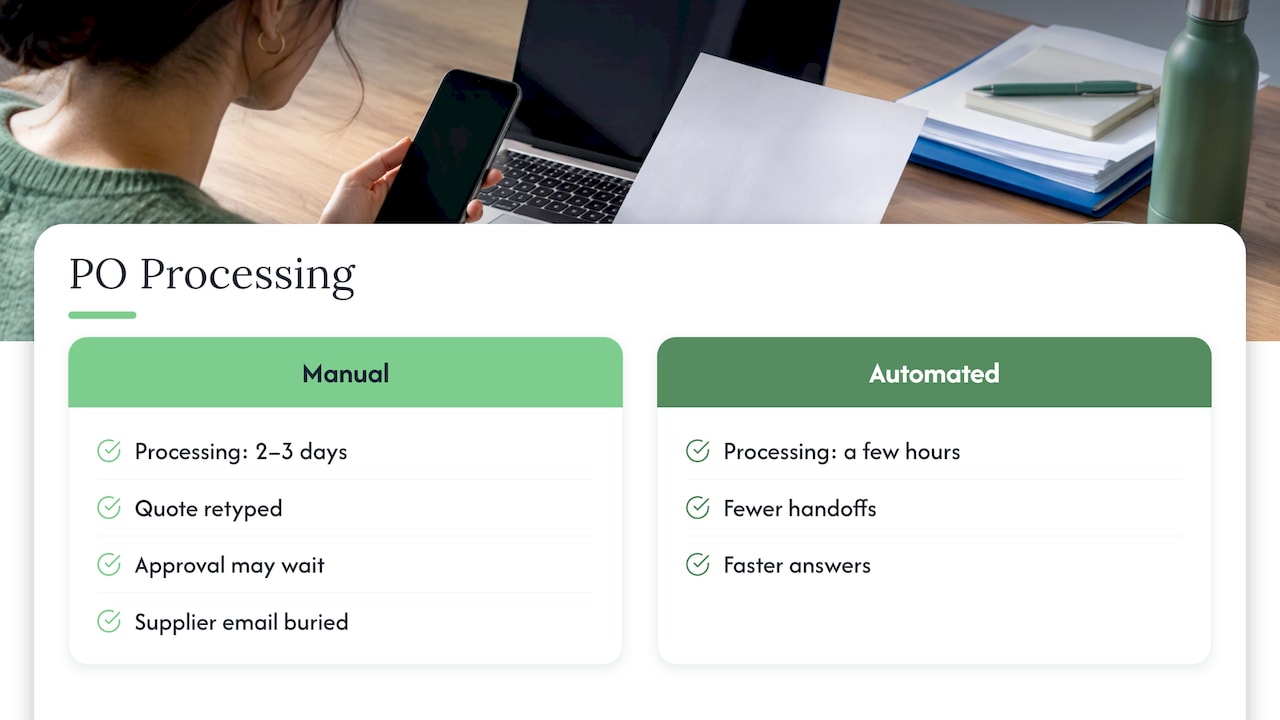
Automation also helps with something owners care about quietly: control. When every purchase has a number, an approver and a record, it is harder for unauthorized spending to slip through. IBM lists reduced errors and fewer unauthorized expenditures among the benefits.
What can you automate, and what should a person still decide?
Not every step suits software. The best way to think about it is rules versus judgment.
Good candidates for automation (clear rules):
- Creating a PO from an approved request
- Sending approvals to the right person based on amount or category
- Reminders when an approval or a delivery is late
- Pulling data from invoices and matching it to the PO within a set tolerance
- Storing every document in one searchable place
Keep a person involved (judgment calls):
- Choosing a new supplier or negotiating price
- Handling a short shipment or damaged goods
- Deciding what to do when the invoice and the PO disagree by more than your tolerance
- Approving unusual or large purchases
The point isn’t to take people out. A Canadian procurement writer, Joël Collin-Demers of Pure Procurement, makes the same distinction: the realistic goal is that much of the cycle runs without anyone touching every transaction, not that no one is involved.
How do I automate purchase orders step by step?
Here is a practical path for a business with 1 to 50 people. It follows the sequence ProcureDesk’s seven-step framework lays out: digital requisitions, approval workflows, automatic PO creation, tracking, spend visibility, invoice matching and integration with accounting. We’ve trimmed it to what a small team needs first.
Step 1: Write down how buying works today
Before touching software, IBM suggests defining who can request, who approves and at what thresholds, and which vendors you use. Do this on one page. Include the quiet habits too: the foreman who orders on his own card, or the text message that counts as an approval. Amazon Business Canada’s guide also recommends mapping both the current and the ideal process, including informal purchasing.
Step 2: Replace the text message with a form
A simple form with the same fields every time (supplier, item, quantity, price, job or budget code, who’s asking) removes most of the retyping. This is the biggest early win and often the cheapest.
Step 3: Set approval rules a human would recognize
Keep them boring. For example: under a set amount, the manager approves; above it, you do. Repeat purchases from a known supplier can move faster. Resist building ten tiers. Procurement Tactics warns that complex approval hierarchies can cause bottlenecks.
Step 4: Generate the PO automatically
Once approved, the system creates the numbered PO from a template with your supplier details, payment terms and line items, and sends it. No one copies anything into a Word document.
Step 5: Track and receive
Whoever receives the goods marks what arrived, including partial deliveries. This record is what makes invoice matching possible later.
Step 6: Match the invoice, then pay
The invoice is compared to the PO and the receipt. Matches within your tolerance move to payment. Mismatches go to a person.
Step 7: Connect it to your accounting
If the PO data doesn’t flow into your books, you’ve only moved the retyping. Check that your accounting tool and your purchasing workflow talk to each other. Our guide to connecting QuickBooks to your CRM shows how small teams think about that kind of link.
What should I look for in purchase order software?
Feature lists get long fast. QuickBooks Canada’s advice to small businesses is to prioritize what you’ll use: automated reordering, a current view of inventory, connected accounting and inventory workflows, and reporting that answers real questions, rather than counting features.
A short checklist:
| What to check | Why it matters |
|---|---|
| Approval rules by amount, department or supplier | Matches how you already authorize spending |
| PO templates | Keeps supplier details and payment terms consistent |
| Status tracking and alerts | You stop chasing suppliers by phone |
| Invoice matching with tolerances | Only real exceptions reach you |
| Accounting integration | Data goes into your books once |
| Simple user permissions | Crew leads can request, only certain people approve |
| Reasonable setup effort | You should be live in weeks, not quarters |
For many Ontario trades, restaurants and shops, the honest first question is whether the accounting software you already pay for covers this. Sage Canada’s page above shows purchase order tools can sit directly alongside accounting. If it does and the workflow is simple, you may only need better rules and a form. If your process spans a CRM, inventory, jobs and accounting, the gap is usually the connections between them.
How do I roll it out without disrupting the business?
The safest approach is small and staged. LineNow’s migration guide recommends starting with one defined supplier and item set, reconciling your data, and testing a complete order before you expand. It also stresses keeping one system responsible for sending each real order and recording each receipt, so a pilot doesn’t create duplicate orders.
A realistic plan looks like this:
- Week 1: Document today’s process. Build the request form and approval rules for one purchase category.
- Week 2: Add PO templates and automatic sending. Run a few real orders in parallel with your old method.
- Week 3: Add delivery tracking and a receiving step.
- Week 4: Add invoice matching and exception flags, then review what worked.
This mirrors the phasing used in many small-team builds, and our own workflow automation examples show what small teams can set up in two to four weeks. Amazon Business Canada’s guide adds a final step worth copying: track a few simple measures such as time to approve and number of exceptions, then adjust.
Bring your crew in early
The tool fails if people avoid it. Show the site lead that the form takes less time than a text. Show your bookkeeper that the PO number is already on the invoice. Ask your suppliers how they’d like to receive orders; some may need a little help moving to a new way of working.
What automation can’t fix
Automation copies what you give it. If your supplier list has duplicates, your item names are inconsistent or nobody agrees on who can approve what, the system will repeat those problems faster. Procurement Tactics lists inaccurate master data, the need for training and IT support, and supplier resistance as things to plan for. Pure Procurement makes the same point about unclear policy and badly set tolerances.
The good news is that each of these is fixable before launch. Clean the supplier list, write the approval rules in plain language, and set matching tolerances that reflect real life (a few cents on freight shouldn’t stop a payment). Treat the first month as a tuning period.
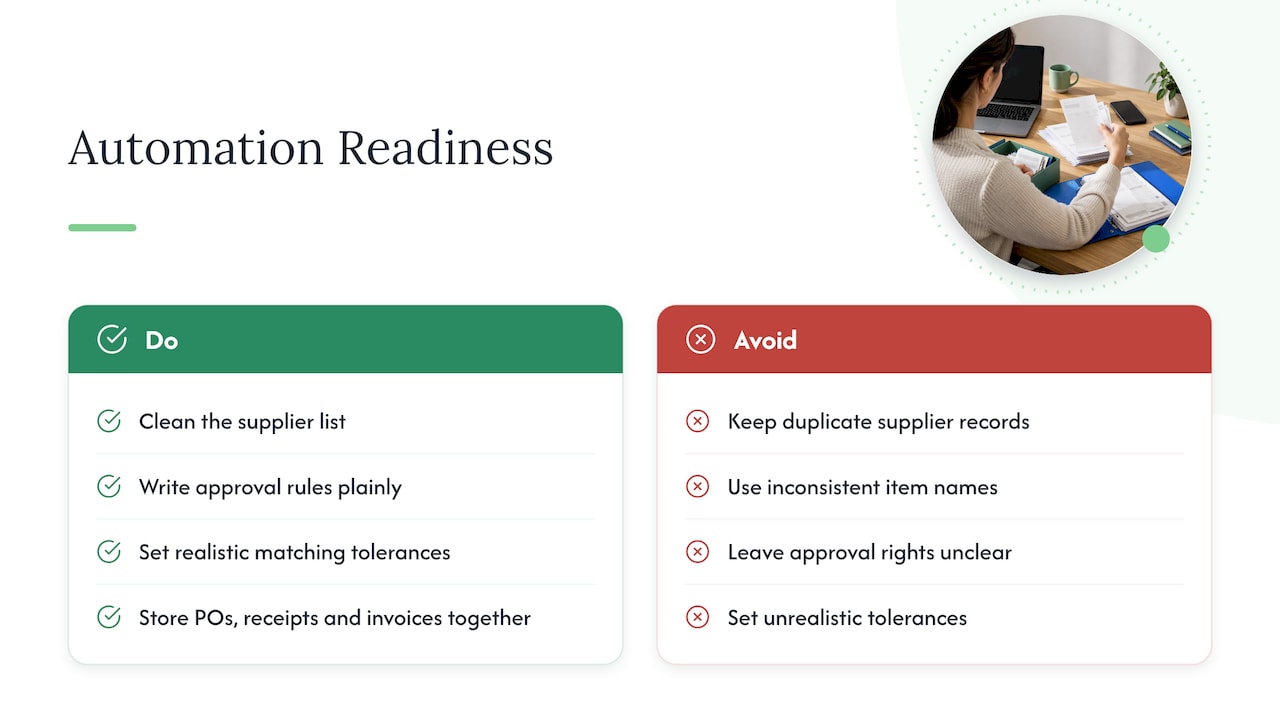
Record keeping deserves a note too. Canadian businesses registered for GST/HST need to keep proper supporting records for purchases, and your accountant or the Canada Revenue Agency’s guidance is the place to confirm exactly what and for how long. A system that stores POs, receipts and invoices together makes that easier.
Perspective: why we build this around your real workflow
We’ve seen the same pattern in small businesses across Ontario. Nobody sets out to run purchasing from texts and a shared inbox. It happens because the business grew faster than the paperwork.
Our view is that purchase order automation shouldn’t start with software. It should start with a conversation about who orders what, who signs off and where things get stuck. Then you build the smallest workflow that removes the chasing, and connect it to the tools you already use.
That is why we do the work in-house, with the people doing the build talking directly to you. We set up automations that fit your trades, restaurant or shop, not a template from a company ten times your size. And because our pricing is month to month with no lock-in contract, you can start small, see the time come back and expand when it makes sense.
The best automation is the one your crew actually uses on a Monday morning.
Cristo
What does it cost to get started with us?
If you’d rather not build this alone, we handle business automation as part of our in-house services, alongside the websites, SEO and CRM work many of our clients already have. Our published monthly plans are Sprout at $300 per month, Grow at $600 per month and Scale at $1,200 per month, with one-time setup fees ranging from $500 to $1,500 for Sprout, $1,500 to $3,500 for Grow and $3,500 to $7,500 for Scale. Business automation projects themselves have no published price, so we scope them with you.
We start every relationship with a free trial that includes a full digital audit, so you see where your time is going before you commit to anything. See the plans and pricing, or browse everything we do.
If your purchasing touches your customer records and your books, our CRM and ERP project archive shows the kind of systems we connect, and our guide to CRM pricing in Canada helps you set a realistic budget for the customer side.
A quick example: a small Ontario contractor
Imagine a six-person renovation company in Ontario. Today, crew leads text photos of supply quotes. The owner approves from the truck, and the bookkeeper rebuilds each order in a spreadsheet at the end of the week.
An automated version might look like this:
- The crew lead fills in a form on their phone: supplier, items, job name.
- Orders under a set amount go to the project manager, and larger ones go to the owner.
- The approved request becomes a numbered PO and goes to the supplier automatically.
- When materials arrive, the crew lead taps “received”, noting anything short.
- The supplier invoice is matched to the PO. If it agrees, it queues for payment. If not, the owner gets one alert.
Nothing about this is exotic. It’s the same process, with the chasing removed. The owner now answers a notification instead of five texts, and the bookkeeper spends the end of the week on the books rather than on retyping.
FAQ
What software is best for tracking purchase orders?
The best choice is the one that fits your process and connects to your accounting. Look for approval rules, PO templates, status tracking, invoice matching and an integration with the accounting tool you already use. Start with those needs rather than a feature count.
Is there a free way to create purchase orders?
Yes, for very low volume you can start with a simple template and a shared form. That gets you a consistent PO format, but approvals, tracking and matching stay manual. As order volume grows, a connected workflow saves the time the template can’t.
What are the four types of purchase orders?
The commonly cited types are standard, planned, blanket and contract purchase orders. A standard PO covers a one-time purchase, a planned PO covers a future purchase with some details still open, a blanket PO covers repeat buys from one supplier over time, and a contract PO ties orders to agreed terms. Most small businesses mainly use standard and blanket orders.
How long does it take to set up purchase order automation?
For a small team with a clear process, a first working version can take a few weeks if you phase it: form and approvals first, then tracking, then invoice matching. The time depends mostly on how clearly your current process is defined and how many systems need connecting.
Do I need an ERP to automate purchase orders?
Not necessarily. Many small businesses start with a form, approval rules and a link to their accounting software. An ERP becomes worth considering when inventory, jobs, purchasing and finance all need to share one set of data.
Sources
- Purchase Order Automation, IBM
- Purchase Order Software, Sage Canada
- Pure Procurement: Procure-to-Pay (P2P) Software, How to Evaluate It
- How to Automate Purchase Orders: 7-Step Framework, ProcureDesk
- Purchase automation overview, Amazon Business Canada
- How Manufacturers Can Automate Purchase Orders, QuickBooks Canada
- Purchase Order Automation: Definition, Benefits, Procurement Tactics
- From Spreadsheets and Email to a Procurement System, LineNow